RCS (Rich Communication Services) is the modern upgrade to traditional SMS and MMS messaging. When enabled on your Samsung Galaxy S26, it allows you to send messages over Wi-Fi or mobile data with features like read receipts, typing indicators, high-quality media sharing, and better group chats—similar to messaging apps like WhatsApp or iMessage. This guide walks you through the process to turn on RCS chats on Galaxy S26 professionally, ensuring you build seamless communication on your device.
Prerequisites Before Enabling RCS Chats
- You must be using the Google Messages app (Samsung’s default messaging app does not support RCS as robustly).
- You need an active data connection (Wi-Fi or Mobile Data).
Below is a step-by-step guide to help you turn on RCS chats on your Samsung S26.
Step-by-Step to Turn on RCS Chats on Samsung Galaxy S26
Follow these exact steps in the Google Messages app, the default for RCS on your Samsung S26.
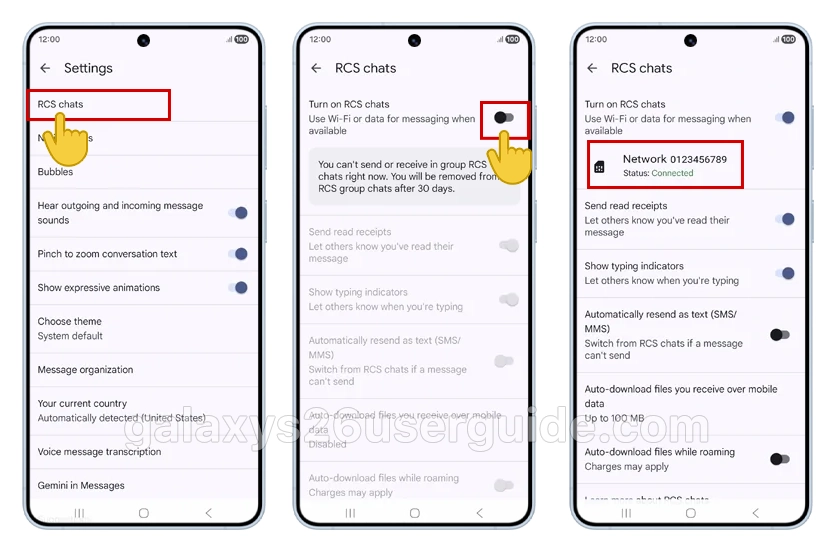
- Open the Google Messages app on your Galaxy S26.
- Tap your profile icon (top-right corner) or the three-dot menu > Messages settings.
- Select RCS chats (or Chat features if not visible).
- Toggle Turn on RCS chats to enable—if prompted, verify your phone number and tap Continue.
- Wait for Status: Connected (may take 1-2 minutes); retry if it shows “Trouble connecting.”
Once connected, your messages will show “Chat message” instead of “Text message.”
Customize RCS Features After Enabling
Once on, tweak options:
- Enable Send read receipts and Typing indicators under RCS chats settings for interactive chats.
- Adjust Auto-download media for high-res images over data, and set Resend as SMS fallback for non-RCS contacts. These enhance daily use for new owners.
How to Know if RCS Chats Are Working
After enabling RCS, you can confirm it is active by checking for these indicators:
- Status shows “Connected” in RCS settings
- The message box displays “Chat message”
- You can see typing indicators
- Messages show Delivered and Read receipts
If the person you’re messaging also has RCS enabled, your conversation will automatically use chat features.
If they do not, your phone will fall back to standard SMS or MMS messaging.
Benefits of Using RCS Chats on Galaxy S26
Activating RCS chats on your Samsung Galaxy S26 offers several advantages compared to traditional texting.
- Better Media Sharing: RCS allows you to send photos and videos in much higher quality than MMS.
- Modern Messaging Features: You’ll get familiar messaging tools such as read receipts, typing indicators, and improved group chat management.
- Messaging Over Wi-Fi: RCS messages are sent through internet data, meaning you can send texts even when cellular signal is weak.
- Larger File Transfers: Unlike MMS, RCS supports larger attachments, making it easier to share media and documents.
Troubleshooting: RCS Chats Not Working
If RCS chats won’t turn on, try these common fixes.
1. Set Google Messages as Default
Go to:
- Settings → Apps → Default apps → SMS app.
- Then select Google Messages.
2. Check Your Internet Connection
- RCS requires Wi-Fi or mobile data to work properly.
3. Update Your Messaging App
Open the Google Play Store and update:
- Google Messages.
- Carrier Services.
4. Restart Your Phone
- A quick reboot often helps refresh network services.
5. Re-verify Your Phone Number
- Sometimes RCS fails to activate if the phone number verification didn’t complete.
Galaxy S26 RCS vs. SMS: Key Differences
| Feature | RCS Chats | SMS/MMS |
|---|---|---|
| Media Quality | HD photos/videos | Compressed/low-res |
| Receipts | Read/typing indicators | None |
| Group Chats | Dynamic, reactions | Basic |
| Encryption | End-to-end (Google) | None |
| Network | Wi-Fi/Data preferred | Cellular only |
Conclusion
Enabling RCS chats on your Samsung Galaxy S26 is a simple process that unlocks a far better messaging experience. By turning on chat features through Google Messages, you gain access to modern tools like read receipts, typing indicators, high-quality media sharing, and improved group messaging.
If you regularly text friends, family, or coworkers, activating RCS is one of the best ways to make your Galaxy S26 messaging faster, smarter, and more enjoyable.
With just a few taps in your messaging settings, you can upgrade your texting from basic SMS to a fully modern chat experience.
1 thought on “How to Turn On RCS Chats on Samsung Galaxy S26: Step-by-Step Guide”