It’s crucial to know how to capture your phone’s screen. This skill is vital for saving important info or sharing laughs with friends. Learning to screenshot on your Galaxy S26 means you won’t miss a thing.
Screen capturing helps you document mistakes, keep digital receipts, or make tutorials. It gives you total control over your phone’s screen.
Our guide on taking screenshots on Galaxy S26 is easy to follow. You’ll find several methods to screenshot quickly and confidently. Follow these steps to enhance your phone use every day.
Primary methods to take screenshot on Galaxy S26
You can take a screen capture on your Galaxy S26 in several ways. These methods help you save important info fast. They work well whether you’re at home or out and about.
Using the physical button combination
Pressing the Power and Volume Down buttons together is a classic method. Hold them for a second, and you’ll see a flash on the screen. This means your screenshot is saved in your gallery.
Utilizing the Palm Swipe gesture
The Palm Swipe gesture is a hands-on way to capture your screen. First, go to your device settings and turn on motion gestures. Then, swipe your hand across the screen’s edge to capture it.
Capturing via the Quick Settings panel
For a touch-based option, add a screenshot button to your notification shade. This is a key part of any Galaxy S26 screenshot guide. Just pull down the Quick Settings panel, tap edit, and add the screenshot toggle to your menu.
Advanced Galaxy S26 screen capture features
Mastering advanced capture features on your device can boost your mobile productivity. Basic methods are great for quick saves, but your phone has professional tools too. These tools help you refine your images before sharing.
Editing and sharing your screenshots instantly
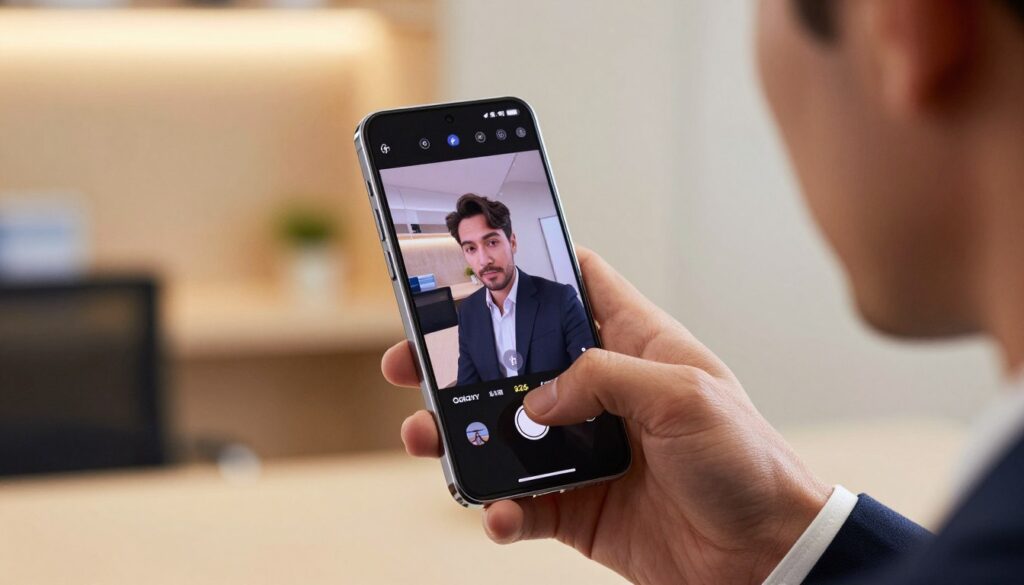
After taking a screenshot on your Galaxy S26, a toolbar appears at the bottom. It offers quick access to editing tools like cropping, drawing, or adding text. You can highlight important parts or remove unwanted backgrounds easily.
Once you’ve edited your screenshot, the share icon lets you send it to your favorite apps. This makes sharing with colleagues or friends quick and easy. Learning these tools saves you a lot of time every day.
Using Scroll Capture for long webpages
For saving long articles or threads, a single frame isn’t enough. The Scroll Capture feature is perfect for this. Look for the downward-pointing arrow icon in the toolbar when you start a capture.
Tapping this icon lets the system scroll and stitch images into one long file. This is the best way to capture long content on your Galaxy S26. Using this feature keeps your workflow smooth and productive.
Mastering your Galaxy S26 capture workflow
Optimizing your device settings makes your digital life better. You now know how to handle your galaxy s26 screen capture tasks with ease. These tips make documenting complex things simple and smooth.
Using these shortcuts daily saves you time. You can quickly capture screen on galaxy s26 content. This way, you won’t miss important details, even when you’re busy.
Keep this Galaxy S26 screenshot tutorial handy for easy access. Software updates often add new features to your device. Staying updated with Samsung’s latest innovations is easy with this guide.
Practicing these tools improves your ability to document and share. Try different methods to find what works best for you. Start using these tips today to boost your mobile productivity.