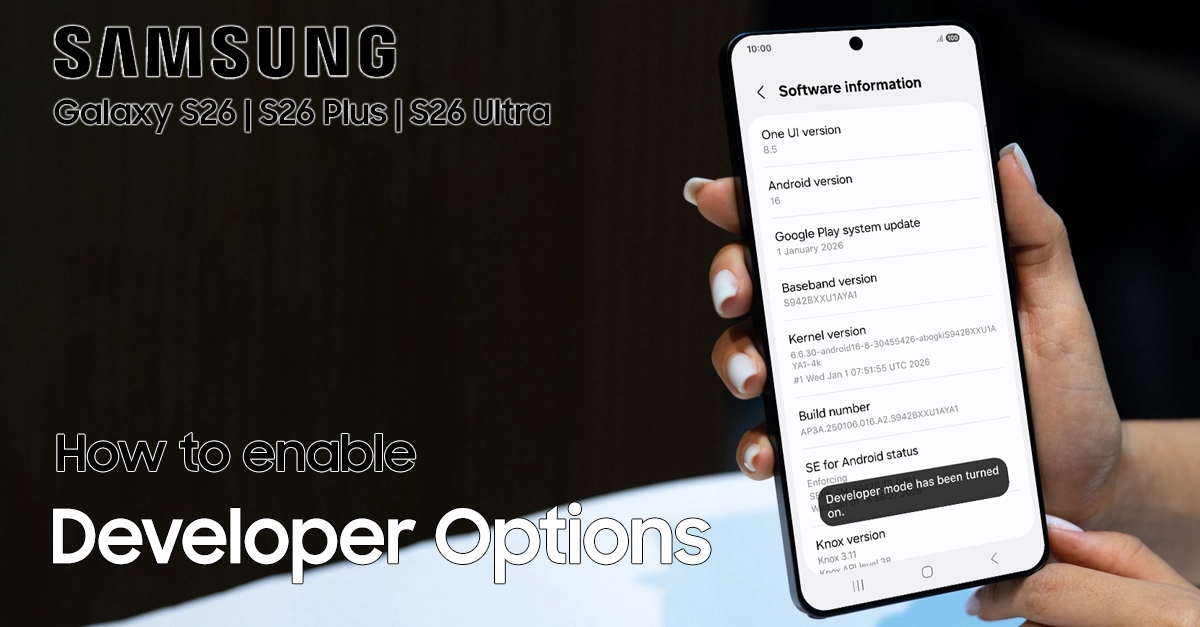
The Samsung Galaxy S26 delivers flagship performance, but users often face lag, battery drain, or app crashes due to hidden settings. Enabling Developer Options unlocks advanced tools to diagnose and fix these issues efficiently. This guide provides a professional, step-by-step process to enable Developer Options on your Samsung Galaxy S26.
What Are Developer Options on Galaxy S26?
Developer Options provide advanced Android settings for developers and power users. On the Galaxy S26, they let you adjust window animations, enable OEM unlocking, or mock locations for testing.
Samsung hides this menu by default to prevent accidental changes. Once enabled, find it at the bottom of Settings for quick access.
Common uses include troubleshooting connectivity problems or speeding up the interface—perfect for your Galaxy S26 diagnostics.
Step-by-Step Guide: Enable Developer Options on Galaxy S26
Follow these exact steps from Samsung’s support site, adapted for Galaxy S26.
- Open the Settings app from your home screen or app drawer.
- Scroll down and tap About phone.
- Tap Software information. You’ll see details like build number and Android version.
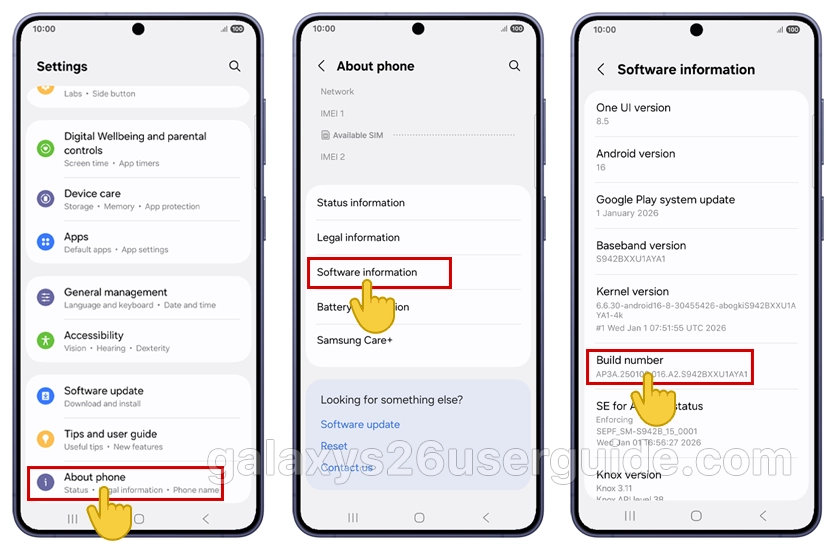
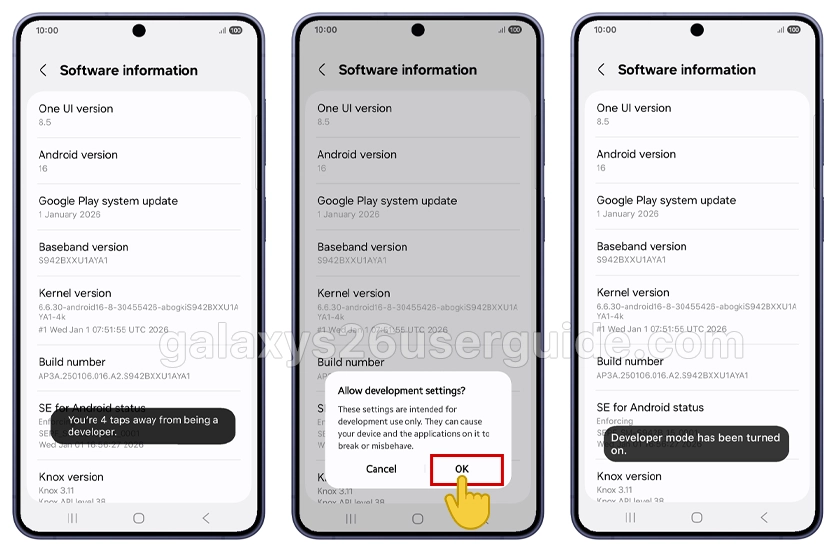
- Locate Build number and tap it 7 times quickly. A countdown appears: “You are now 4 taps away from being a developer.”
- Tap OK or confirm. A toast message says: “Developer options are now enabled!”
- Go back to the main Settings menu. Scroll to the bottom—Developer options appears as a new entry.
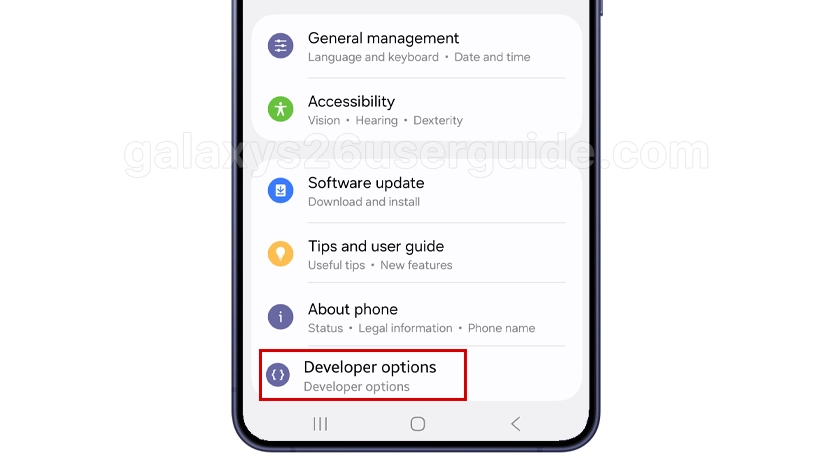
Success! The menu is active. Toggle the switch at the top to disable anytime.
| Step | Action | Expected Result |
|---|---|---|
| 1-2 | Settings > About phone | Software info screen loads |
| 3-4 | Software information > Tap Build number 7x | “You are now a developer!” message |
| 5-6 | Enter lock > OK | Confirmation popup |
| 7 | Return to Settings | Developer options visible at bottom |
Troubleshooting Common Issues on Galaxy S26
Build number won’t register taps? Restart Settings app or ensure no accessibility service interferes. Try tapping faster.
Menu not appearing? Pull down notification shade, check for “Developer mode enabled” toast, then refresh Settings.
For Galaxy S26-specific bugs like slow animations, enable after these steps.
Key Developer Options for Galaxy S26 Troubleshooting
Prioritize these for problem-solving:
- USB debugging: Connect to PC for logcat error checks.
- Window/Transition animation scale: Set to 0.5x for snappier feel.
- OEM unlocking: Preps for custom ROMs (advanced users only).
- Running services: Monitor RAM-hogging apps.
Avoid random toggles to prevent bootloops.
Example: If Galaxy S26 apps crash, enable USB debugging, connect to PC, and run ADB logcat for error logs.
How to Disable Developer Options Safely
- Open Settings > Developer options.
- Toggle the switch at the top to off. Menu hides automatically.
This reverts changes without reset. Re-enable anytime via the same Build number method.
Enabling Developer Options on Galaxy S26 empowers you to troubleshoot like a pro— from app diagnostics to performance boosts. Follow these Samsung-verified steps for reliable results, building your expertise on Galaxy S26 mastery.
1 thought on “How to Enable Developer Options on Samsung Galaxy S26”