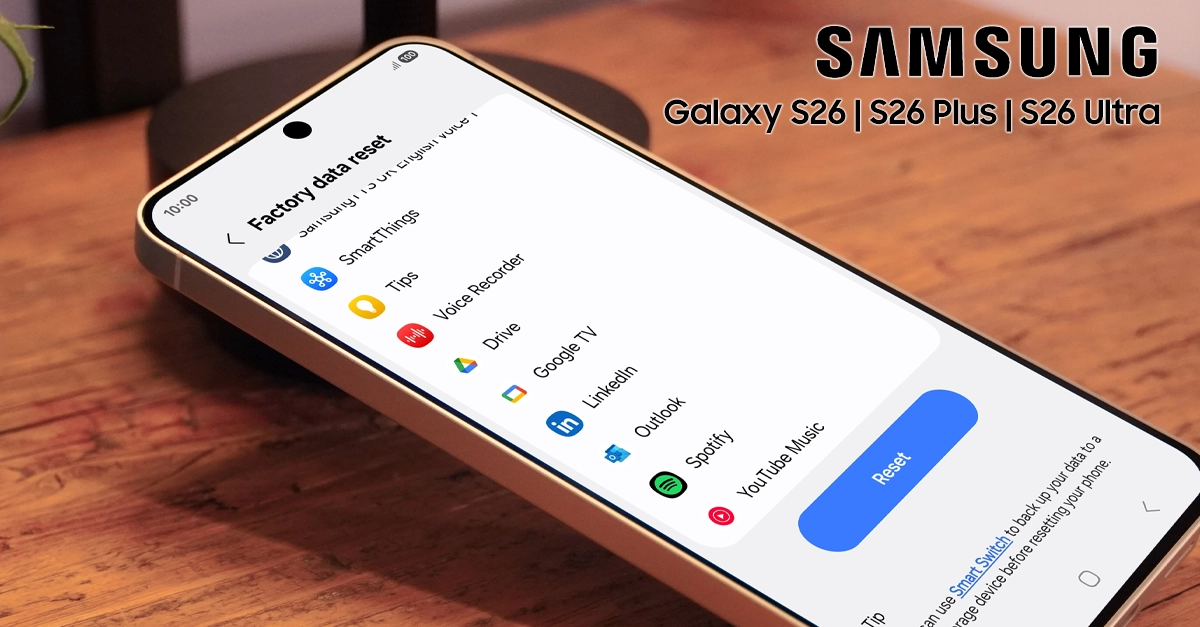
Is your Samsung Galaxy S26 running slow, freezing, or experiencing persistent software glitches? Learning how to factory reset Galaxy S26 can solve these problems quickly. A factory reset restores your device to its original settings, wiping all data and giving you a fresh start. This guide walks you through both methods—via Settings menu and Recovery Mode—so you can troubleshoot issues safely and effectively.
Before You Reset: Back Up Your Data
Before performing a factory reset, back up your important files. A reset permanently deletes everything on your device, including photos, contacts, apps, and settings.
- Go to Settings > Accounts and backup > Back up data.
- Toggle on Back up my data and select Samsung Account or Google Account.
- Ensure your backup completes before proceeding.
Backing up ensures you can restore your information after the reset.
Methods to Factory Reset your Samsung Galaxy S26
A factory reset on the Samsung Galaxy S26 can be performed using either the Settings menu (soft reset) or Recovery mode (hard reset). Here are both methods:
Method 1: Factory Reset via Settings Menu
The easiest way to reset your Galaxy S26 is through the Settings menu. Use this method if your phone is responsive and you can access the interface.
Step 1: Open Settings
Swipe down from the top of your screen and tap the gear icon, or find Settings in your app drawer.
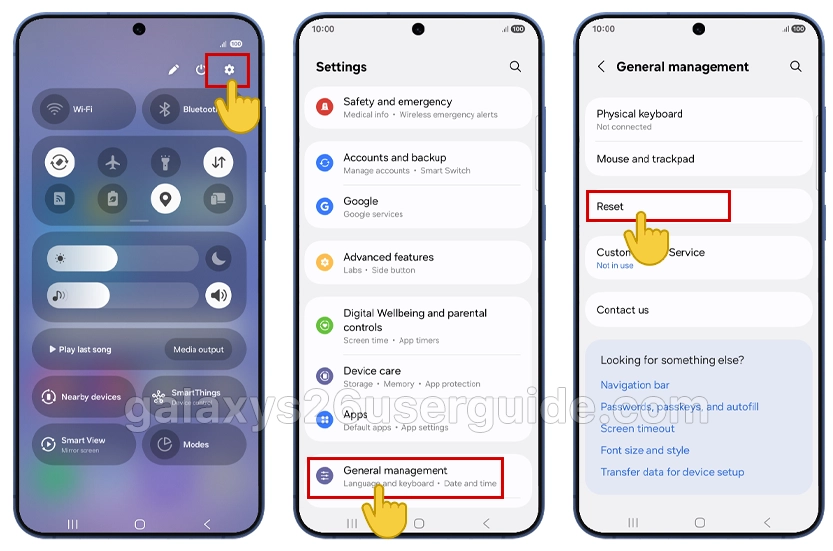
Step 2: Navigate to Reset Options
Scroll down and select General management. Tap Reset to view available reset options.
Step 3: Select Factory Data Reset
Tap Factory data reset. Review the information about what gets deleted.
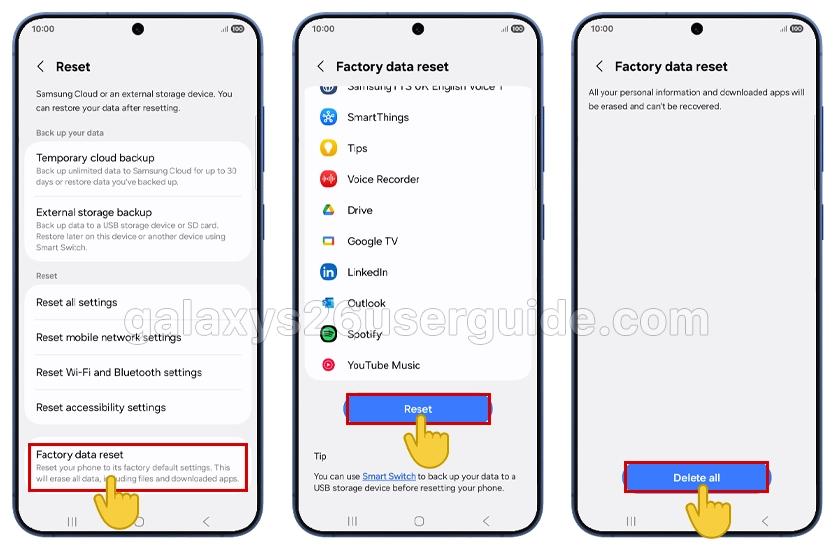
Step 4: Confirm Your Action
Scroll to the bottom and tap Reset. If prompted, enter your PIN, password, or pattern.
Step 5: Erase Everything
Tap Delete all to confirm. Your Galaxy S26 will restart and begin the reset process. This typically takes 5–10 minutes.
Method 2: Factory Reset via Recovery Mode
Use Recovery Mode if your Galaxy S26 is frozen, unresponsive, or you cannot access the Settings menu due to software issues.
Step 1: Power Off Your Device
Press and hold the Side button and Volume down button simultaneously until the power menu appears. Tap Power off.
Step 2: Enter Recovery Mode
Press and hold the Side button and Volume up button together until the Samsung logo appears. Release both buttons when you see the Android Recovery screen.
Step 3: Navigate the Recovery Menu
Use the Volume down button to scroll to Wipe data/factory reset. Press the Side button to select.
Step 4: Confirm Factory Reset
Scroll down to Factory data reset using Volume down, then press the Side button to confirm.
Step 5: Complete the Reset
Select Yes to proceed. The reset begins immediately. When finished, select Reboot system now using the Side button.
After the Reset: Set Up Your Galaxy S26
Once your device restarts, you will see the initial setup screen. Follow these steps:
- Select your language and connect to Wi-Fi.
- Sign in with your Google Account or Samsung Account.
- Restore your data from the backup you created earlier.
- Reinstall essential apps from the Google Play Store.
Your Galaxy S26 now runs like new, free from previous software issues.
When to Factory Reset Your Galaxy S26
A factory reset resolves various troubleshooting scenarios:
- Persistent app crashes that restarting cannot fix.
- Severe battery drain caused by background processes or malware.
- Performance slowdowns after months of heavy use.
- Failed software updates leaving your device unstable.
- Preparing to sell or give away your phone securely.
Resetting eliminates problematic files and corrupted data causing these issues.
Troubleshooting Common Reset Problems
Sometimes the factory reset process encounters obstacles. Here are quick solutions:
| Problem | Solution |
|---|---|
| Phone freezes during reset | Force restart by holding Side + Volume down for 10 seconds, then retry |
| Forgot Google Account password | Visit Google Account Recovery on another device before resetting |
| Cannot enter Recovery Mode | Ensure you release buttons exactly when the Samsung logo appears |
| Reset takes longer than 20 minutes | Keep the phone connected to power and wait; do not interrupt |
Conclusion
Knowing how to factory reset Galaxy S26 empowers you to fix software problems independently without visiting a service center. Whether you use the Settings menu for routine resets or Recovery Mode for serious troubleshooting, both methods restore your device to peak performance
Always back up your data first, follow each step carefully, and set up your phone fresh afterward. With this guide, your Galaxy S26 will run smoothly again in just minutes.
3 thoughts on “How to Perform Factory Reset your Samsung Galaxy S26”