The Samsung Galaxy S26 is packed with powerful capabilities, but many of its most useful tools aren’t immediately visible. For new Samsung owners, discovering these Galaxy S26 hidden features can transform how you use your device—from boosting productivity to customizing your interface for maximum efficiency. This guide reveals the secret settings and shortcuts that Samsung doesn’t advertise upfront, helping you get the most from your investment.
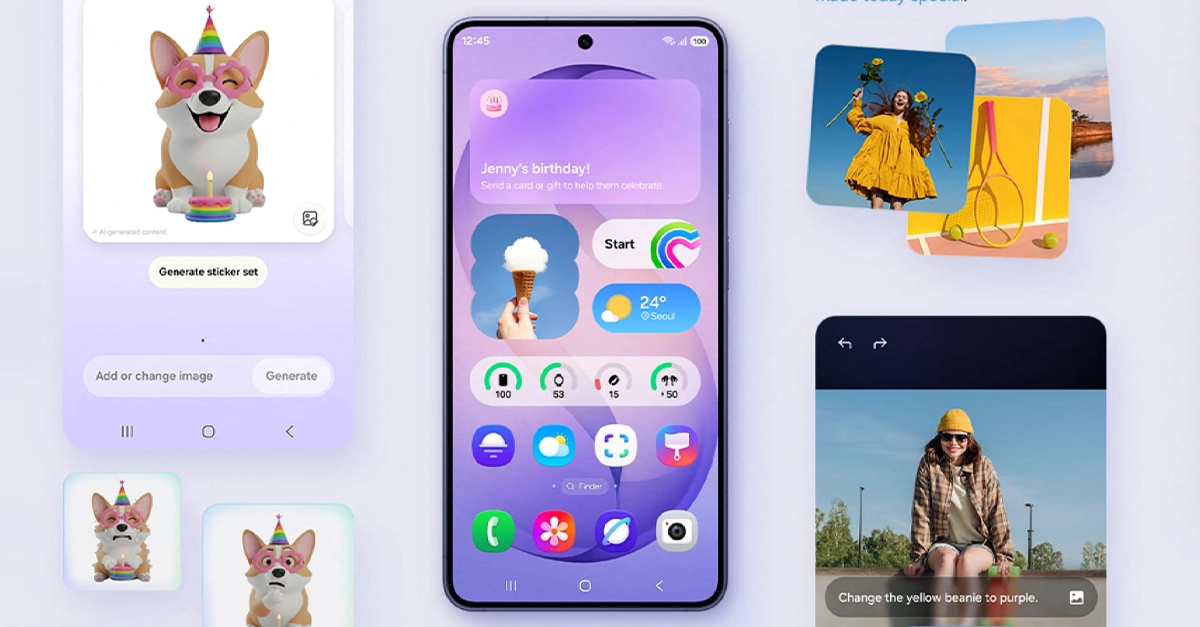
Samsung Galaxy S26 Hidden Features: Unlock Your Phone’s Full Potential
Here are some hidden features, useful tools, and lesser-known tricks you can take advantage of on the Samsung Galaxy S26 series (including S26, S26+ and S26 Ultra) — many of which aren’t obvious right out of the box:
1. Privacy Display (Anti-Peeking Screen)
The S26 (especially the Ultra) includes a next-gen privacy screen that blocks side-angle viewing so others can’t peek at your content — ideal for messages, banking apps, or sensitive info in public. You can customize it for specific apps (e.g., messages, PIN screens, notifications).
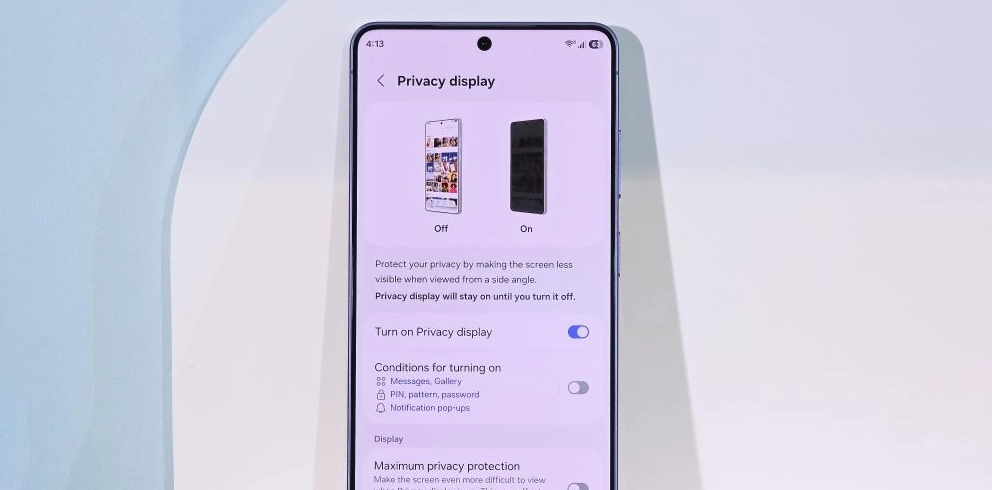
Bonus: Some versions can automatically activate privacy based on context (like when opening banking apps).
2. On-Device Galaxy AI
The S26 line introduces deeper agentic Galaxy AI that works offline on the phone (faster, more private):
- AI notification summaries that group and summarize notifications.
- Smart tasks automation (e.g., booking rides, making reservations via AI assistants like Gemini or Perplexity).
- AI-powered call screening and privacy alerts that highlight suspicious app behavior.
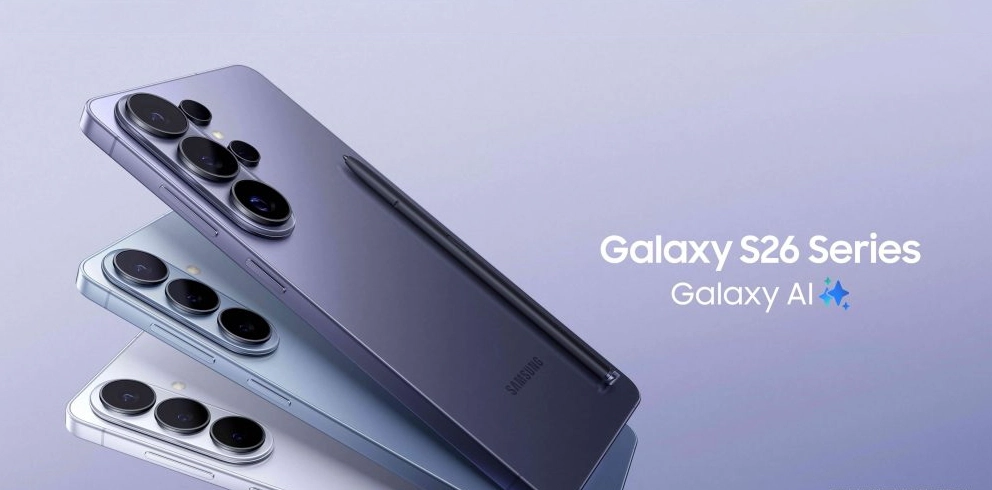
These are deeper software features of One UI 8.5 that might not be obvious until you enable or explore them.
3. Real-Time Camera Translation
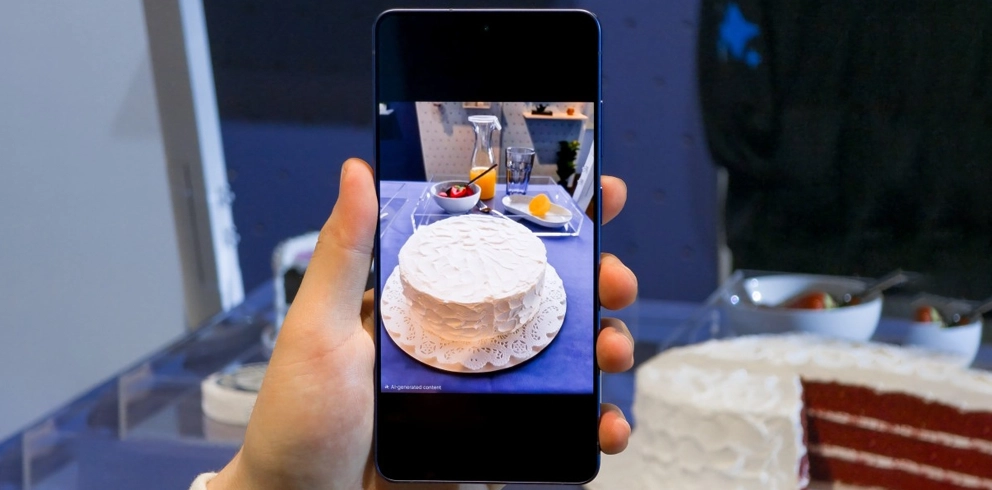
A powerful camera trick on the S26 (especially Ultra): live text translation directly in the camera viewfinder. Point at text in another language and see the translation overlaid in real time — much more fluid than static scan-then-translate tools.
4. Private Album in Gallery
Beyond regular folders, there’s a built-in Private Album where you can stash photos and videos securely without needing a separate secure folder or Samsung Account.
5. Pro Level Developer Tricks
If you like to tweak performance, hidden developer options can help:
Force GPU Rendering
Enable it to make UI animations smoother by forcing the GPU to render more graphics tasks (can slightly boost fluidity).
- Go to Settings → About phone → Software info.
- Tap Build number repeatedly to unlock Developer Options.
- In Developer Options, enable Force GPU rendering or 4x MSAA for graphics boost.
This may increase battery use slightly.
6. AI Notification Safety & Privacy Alerts
Galaxy S26 actively monitors apps that request sensitive permissions and can notify you if something looks suspicious — helping you stay in control of data access.
Quick Hidden Productivity Perks
Even though they’re familiar from prior One UI versions, the S26’s UI continues to offer:
- Extract Text (OCR) from photos or screenshots — tap text to copy/edit.
- Back Tap / Gesture Shortcuts for quick actions.
- Circle to Search Improvements — tap parts of an image to search multiple objects individually.
These aren’t “brand new” but are easy to overlook if you don’t explore One UI deeply.
7. Quick Share: Transfer Files Instantly
While most users know about Samsung’s sharing capabilities, Quick Share remains underutilized among Galaxy S26 hidden features. This tool enables lightning-fast file transfers to nearby Samsung devices without email, messaging apps, or cloud storage.
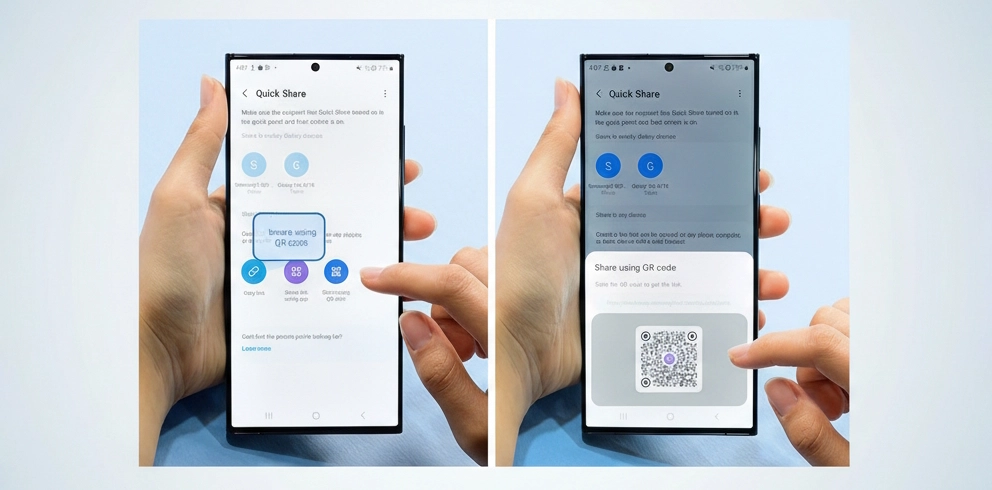
Activate Quick Share by swiping down to access Quick Settings and tapping the Quick Share icon. Alternatively, select files in your gallery or file manager, tap the Share button, and choose “Quick Share” from the menu.
Your device will scan for nearby Samsung smartphones, tablets, or laptops. Once detected, simply tap the recipient’s device name to send files instantly using a combination of Bluetooth and Wi-Fi Direct technology.
Download Your Complete Galaxy S26 Manual
Mastering these Galaxy S26 hidden features is just the beginning. For comprehensive coverage of every setting, shortcut, and capability your device offers—including advanced troubleshooting steps and professional tips—download our complete PDF manual. This printable guide serves as your permanent reference, available offline whenever you need assistance.
[Download Your Free Galaxy S26 Manual PDF]
Whether you’re transitioning from another Android device or switching from iPhone entirely, understanding these hidden capabilities ensures you maximize your Samsung investment from day one.
Conclusion
The Samsung Galaxy S26 offers far more than its default interface suggests. From Developer Options and Edge Panels to Secure Folder and Bixby Routines, these Galaxy S26 hidden features provide the customization and efficiency that new Samsung owners need most. By implementing the tools outlined in this guide, you’ll navigate your device with confidence and streamline your daily mobile experience.
1 thought on “Samsung Galaxy S26 Hidden Features: A Complete Guide for New Samsung Owners”