When your Samsung Galaxy S26 starts acting up—whether it’s unexpected battery drain, app crashes, or strange performance issues—knowing how to use safe mode on Galaxy S26 becomes your most valuable troubleshooting tool. Safe mode creates a clean diagnostic environment where only essential Samsung apps run, helping you quickly identify if a third-party application is causing your problems.
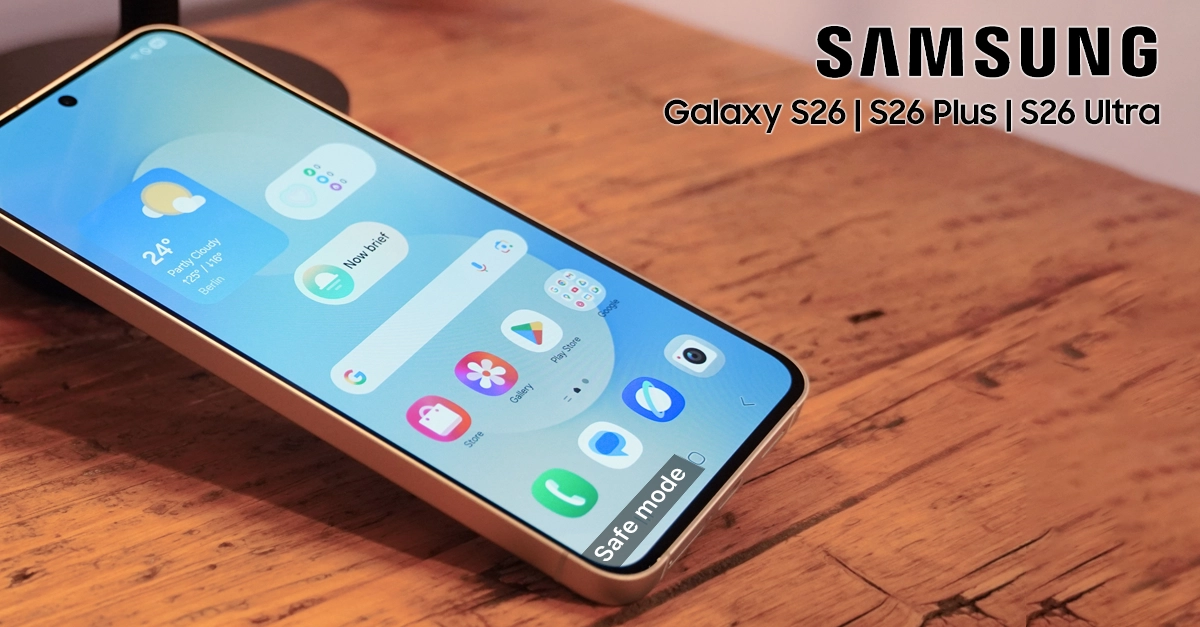
This guide walks you through everything you need to know about using safe mode on your Galaxy S26, from activation to troubleshooting techniques that will get your device back to optimal performance.
What Is Safe Mode on Galaxy S26?
Safe mode is a built-in diagnostic feature on your Samsung Galaxy S26 that temporarily disables all third-party applications while keeping essential system functions and pre-installed Samsung apps operational. When you activate safe mode, your device operates with a minimal software environment, making it easier to isolate software-related issues.
Think of safe mode as your Galaxy S26’s “safe space” for troubleshooting. If your phone performs normally in safe mode but exhibits problems in regular mode, you’ve confirmed that a downloaded app is likely the culprit. This knowledge saves you time, prevents unnecessary factory resets, and helps you maintain control over your device’s health.
How to Enable Safe Mode on Galaxy S26: Two Reliable Methods
You can activate safe mode on your Galaxy S26 using either the power menu method (easiest) or the hardware button method (useful when device is unresponsive).
Method 1: Using the Power Menu (Recommended)
This method works when your Galaxy S26 is powered on and responsive:
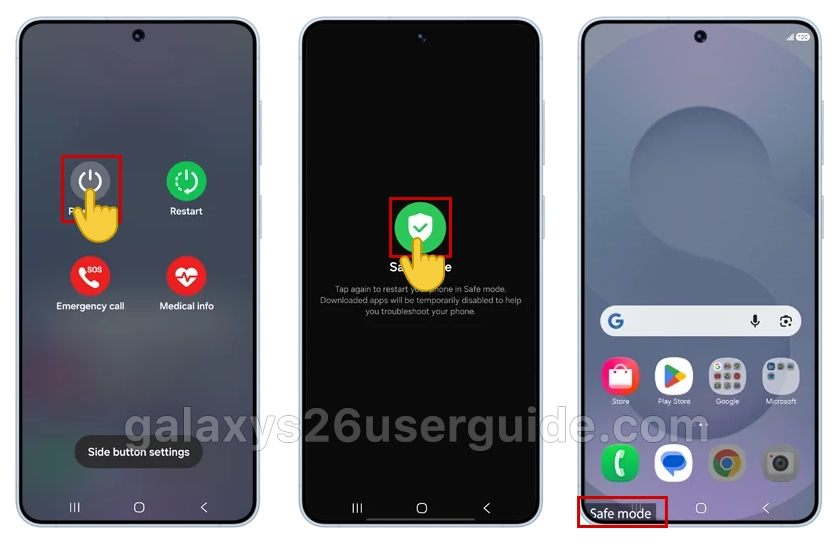
- Press and hold the Power button until the power menu appears on screen.
- Touch and hold the “Power off” option for approximately 2-3 seconds.
- Tap the “Safe mode” icon when it appears in the menu.
- Confirm your selection if prompted.
- Wait for your device to restart—it will automatically boot into safe mode.
You’ll know safe mode is active when you see the words “Safe mode” displayed in the bottom-left corner of your screen.
Method 2: Using Hardware Buttons (When Device Is Off)
Use this method if your Galaxy S26 is unresponsive or you prefer button combinations:
- Power off your Galaxy S26 completely using the power menu or button combination.
- Press and hold the Power button until you see the Samsung logo appear.
- Release the Power button immediately, then press and hold the Volume Down button.
- Continue holding Volume Down until the device finishes booting up.
- Look for “Safe mode” text in the bottom-left corner to confirm successful entry.
Exiting Safe Mode on Your Galaxy S26
Returning to normal operation is simple:
- Press and hold the Power button to access the power menu.
- Tap “Restart” and confirm your selection.
- Allow your device to reboot normally.
Alternatively:
- Swipe down from the top to open the notification panel.
- Locate the “Safe mode is on” notification.
- Tap the notification and select “Turn off”.
- Your device will restart and exit safe mode automatically.
When to Use Safe Mode on Your Galaxy S26
Consider using safe mode on your Galaxy S26 when you experience these common symptoms:
- Battery draining faster than usual despite normal usage patterns.
- Apps freezing, crashing, or behaving unexpectedly.
- Device running slowly or becoming unresponsive.
- Unusual pop-up ads or suspicious notifications appearing.
- Phone overheating during standard operation.
- Connectivity issues with Bluetooth, Wi-Fi, or cellular networks.
Using safe mode proactively helps you understand your device better and prepares you for efficient troubleshooting when issues arise.
What to Do While in Safe Mode
Once your Galaxy S26 is in safe mode, perform these diagnostic checks:
- Test basic functionality: Make calls, send messages, and browse the internet.
- Monitor battery usage: Check if abnormal drain persists in safe mode.
- Observe performance: Note if lag, freezing, or crashes still occur.
- Monitor temperature: See if overheating continues without third-party apps.
- Test specific features: Check Bluetooth, Wi-Fi, GPS, and other problematic functions.
If your Galaxy S26 operates normally in safe mode but shows issues in regular mode, you’ve confirmed a third-party app is causing the problem.
Identifying Problematic Apps After Safe Mode Testing
After determining that safe mode resolves your Galaxy S26 issues, follow these steps to find the problematic application:
- Exit safe mode and return to normal operation.
- Uninstall recently installed apps one by one, starting with those added before issues began.
- Test your device after each uninstallation to see if problems persist.
Focus on likely culprits:
- Games or entertainment apps downloaded recently.
- Utility apps from unknown sources.
- Battery optimizers or phone cleaners.
- Custom keyboards, launchers, or themes.
- Apps requesting excessive permissions.
- Reinstall apps selectively once you’ve identified and removed the problematic one.
Preventive Measures for Galaxy S26 Health
To minimize future troubleshooting needs, implement these preventive habits:
- Download apps exclusively from Google Play Store or Galaxy Store.
- Read reviews and check permissions before installing new applications.
- Keep your software updated with the latest security patches.
- Regularly audit installed apps and remove unused ones.
- Monitor battery usage statistics in Settings to spot abnormal consumption.
- Clear app cache periodically for frequently used applications.
Conclusion
Knowing how to use safe mode on Galaxy S26 empowers you to diagnose and resolve common smartphone issues without technical expertise or data loss. This built-in diagnostic tool helps you quickly determine whether third-party apps are responsible for battery drain, performance problems, or erratic behavior.
By mastering both activation methods and following the systematic troubleshooting approach outlined above, you’ll save time, avoid frustration, and maintain better control over your Galaxy S26’s performance. Remember that safe mode is your friend when troubleshooting—it provides a safe, clean environment to identify issues without risking your personal data or requiring complex technical procedures.