When you temporarily back up Galaxy S26 to Samsung Cloud, you get unlimited free storage for 30 days to protect your photos, apps, messages, and settings. Whether you are sending your device for repair, performing a factory reset, or switching to a new Galaxy phone, this feature ensures your data stays safe without paying for extra cloud storage.
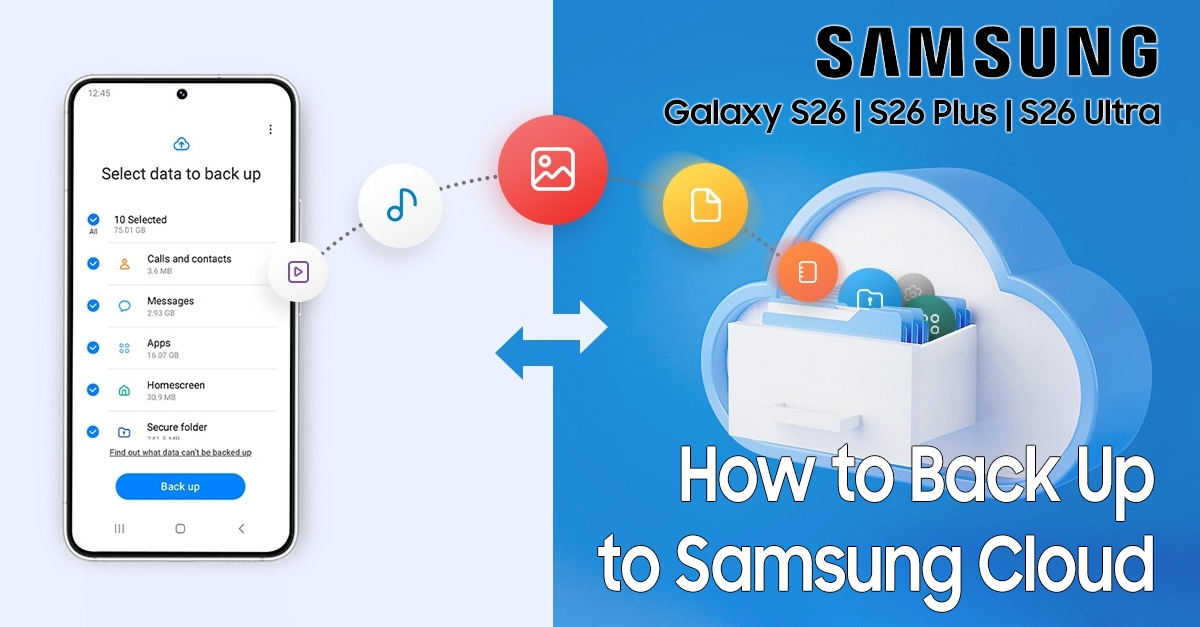
The best part? There is no storage limit. Back up everything—photos, videos, Secure Folder files, home screen layouts, and app data—without worrying about running out of space.
What You Can Back Up
When you temporarily back up Galaxy S26 to Samsung Cloud, you can store:
- Photos and videos from your Gallery.
- Apps and app data.
- Contacts, call logs, and messages.
- Secure Folder contents (private files stay protected).
- Home screen settings and device preferences.
- Calendar events and alarms.
Note: Individual files must be under 100GB, and files stored on microSD cards cannot be backed up.
Steps to Temporarily Back Up Galaxy S26 to Samsung Cloud
Follow these simple steps to secure your data:
Step 1: Open Settings
Swipe down from the top of your screen to open the Quick Settings panel, then tap the Settings icon.
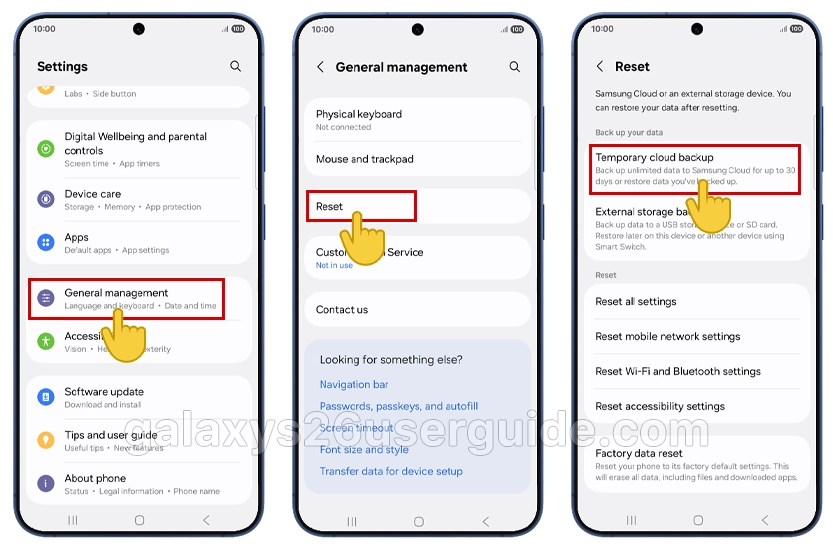
Step 2: Navigate to Reset Options
Scroll down and tap General management. Then scroll to the bottom and tap Reset.
Step 3: Select Temporary Cloud Backup
Tap Temporary Cloud Backup. You will see the backup your data section here.
Step 4: Sign In to Your Samsung Account
Ensure you are signed in with your Samsung Account. This enables two-factor authentication to keep your data secure.
Step 5: Choose What to Back Up
Tap Back up data. Your Galaxy S26 will scan for available data. Select the items you want to back up—such as photos, apps, contacts, and Secure Folder.
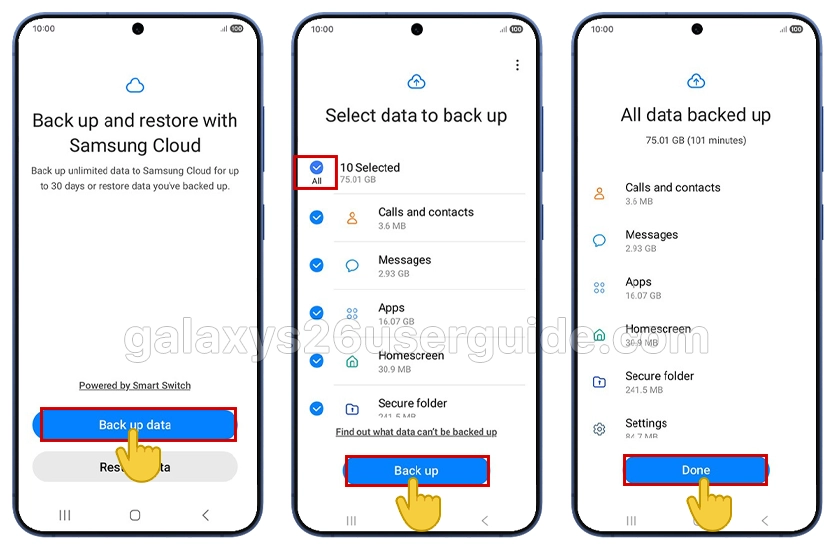
Step 6: Start the Backup
Tap Back up. Connect to Wi-Fi if you have not already. The backup will begin, and you will see a progress indicator.
Step 7: Wait for Completion
Depending on how much data you have, this may take several minutes. Once finished, tap Done.
How to Restore Your Backup
To restore your data on the same or a new Galaxy device:
- Go to Settings > General management > Reset > Temporary Cloud Backup.
- Tap Restore data.
- Select the backup you want to restore.
- Choose which items to restore.
- Tap Restore and wait for completion.
Important Limitations to Know
When you temporarily back up Galaxy S26 to Samsung Cloud, keep these rules in mind:
| Limitation | Details |
|---|---|
| Storage duration | 30 days from initial backup |
| File size limit | 100GB per individual file |
| Storage space | Unlimited total backup size |
| Notification | 7-day warning before deletion |
| Network requirement | Wi-Fi connection required |
| Automatic deletion | Data deleted after 30 days |
Plan your restore within the 30-day window to avoid losing your backup.
When to Use This Feature
The temporary back up Galaxy S26 to Samsung Cloud feature is perfect for:
- Phone repairs: Use Maintenance Mode with Temporary Cloud Backup to keep data safe while technicians work on your device.
- Factory resets: Back up before resetting your phone, then restore afterward.
- Device upgrades: Switching to a newer Galaxy model? Back up your old phone and restore to your new one.
- Selling your phone: Secure your data before wiping the device for resale.
Tips for a Smooth Backup Experience
- Connect to fast Wi-Fi: Large backups work best with strong, stable internet.
- Charge your phone: Ensure at least 50% battery before starting.
- Back up selectively: If you are in a hurry, prioritize photos, contacts, and Secure Folder.
- Set a reminder: Mark your calendar 23 days after backup to restore before the 30-day limit.
Conclusion
Learning how to temporarily back up Galaxy S26 to Samsung Cloud gives you peace of mind without spending money on extra storage. With unlimited backup space for 30 days, you can protect everything that matters—securely and for free.
Whether you are repairing, resetting, or upgrading your device, this feature makes data management simple and stress-free. Start your backup today and keep your Galaxy S26 data safe.
2 thoughts on “How to Temporarily Back Up Galaxy S26 to Samsung Cloud”