Voicemail problems on your Galaxy S26 can cause you to miss important messages, but in most cases the issue is easy to fix with a few checks and resets. This guide walks you through clear, step‑by‑step methods to fix voicemail not working on Galaxy S26, from basic settings to advanced troubleshooting.
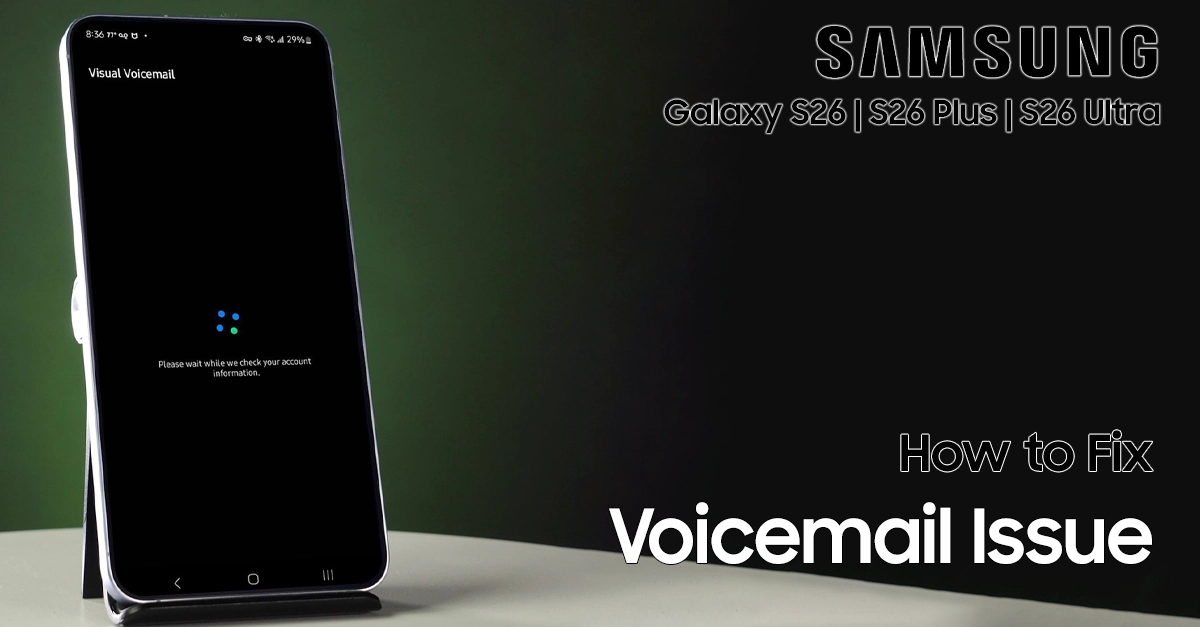
Steps to Fix Voicemail Not Working on Galaxy S26
Here are the most effective solutions to get voicemail working on your Galaxy S26, ordered from simplest to more advanced troubleshooting steps.
Before you start: quick checks
Check your signal and Airplane mode
- Make sure you have a stable mobile network signal, since voicemail needs your carrier’s network to work.
- Turn Airplane mode off if it is enabled, then wait a few seconds for the phone to reconnect.
Restart your Galaxy S26
- Press and hold the Power button.
- Tap “Restart,” then confirm.
- After the reboot, test voicemail again by calling your number or holding the 1 key.
Check with your carrier if voicemail is active
- If voicemail has never worked on this SIM, contact your carrier to confirm that voicemail is enabled on your line.
- They can also tell you if there is a known outage affecting voicemail in your area.
Step 1: Confirm your voicemail number on the Galaxy S26
If the voicemail access number is wrong, your phone cannot reach the mailbox.
Follow these steps:
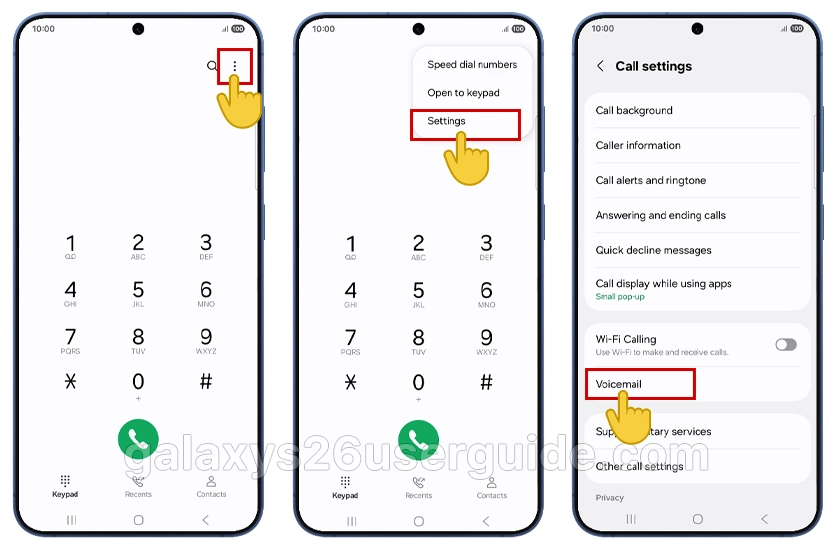
- Open the Phone app.
- Tap the three‑dot menu in the top‑right corner, then tap Settings.
- Tap Voicemail.
- Tap Voicemail number.
- Check that the number matches your carrier’s voicemail access number (for example, *86 for Verizon, 1 or 901 for some other carriers).
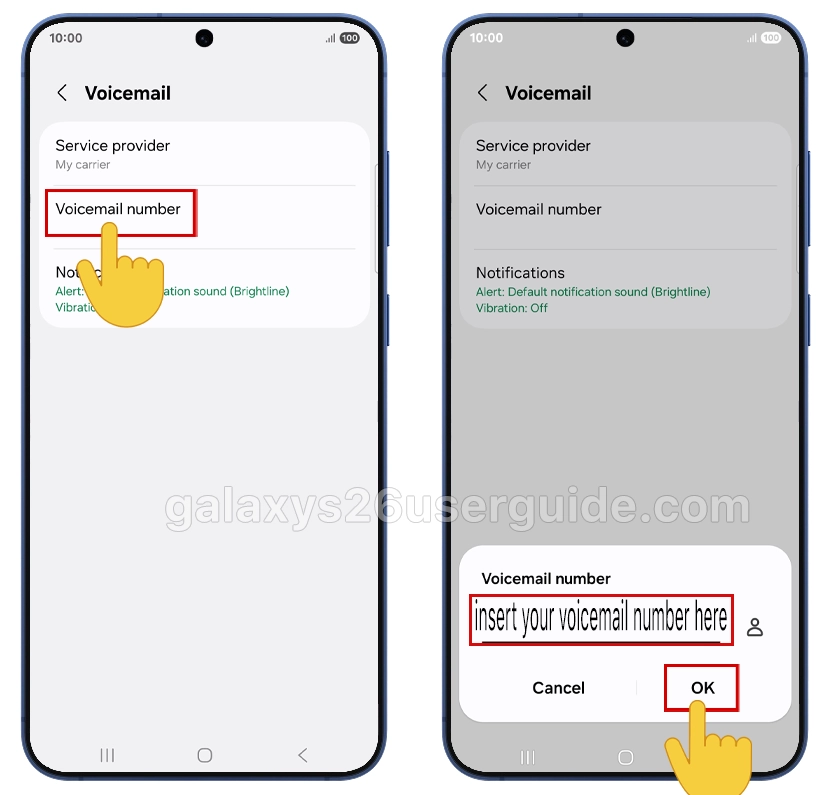
If you are not sure about the correct number, ask your carrier or check their support page, then update the field and save.
Step 2: Make sure voicemail is fully set up
If voicemail was never set up, calls will not reach a mailbox even if the button works.
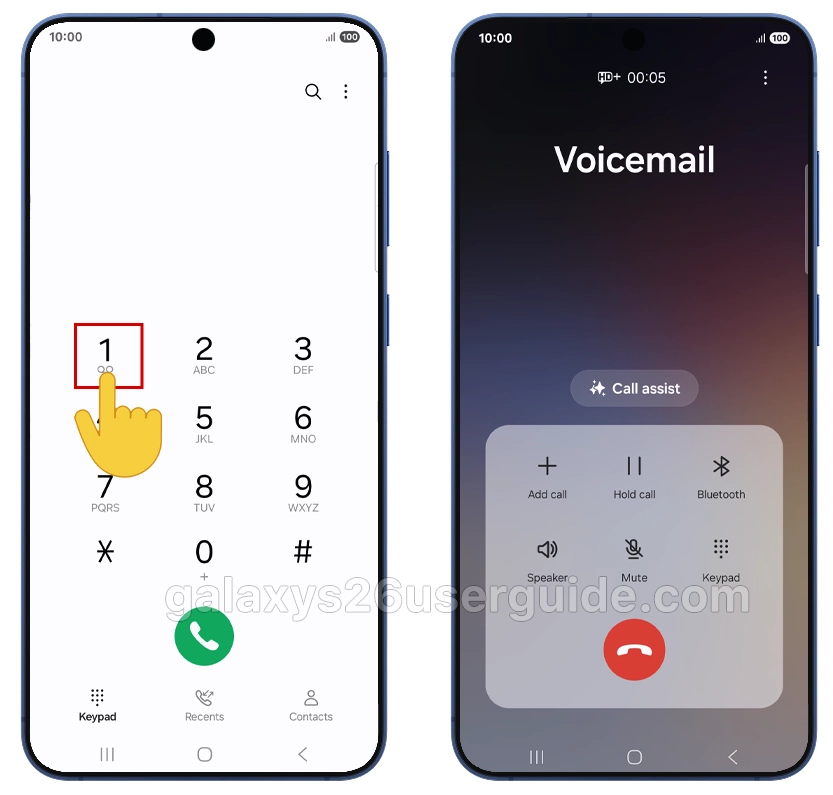
- Open the Phone app and tap the dial pad icon.
- Press and hold the 1 key to call your voicemail.
- Follow the voice prompts to:
- Create a voicemail PIN or password.
- Record your name and greeting.
- When setup finishes, leave yourself a test voicemail from another phone and see if it appears.
Use a PIN that is not easy to guess; avoid simple codes like 0000 or 1234.
Step 3: Check Visual Voicemail status and notifications
If you use Visual Voicemail on the Galaxy S26, the app must be enabled and allowed to show alerts.
- Open the Phone app and go to Settings > Voicemail (or Visual Voicemail, depending on your carrier).
- Confirm that Visual Voicemail is turned on if your plan supports it.
- Go to Settings > Apps > Visual Voicemail (or your carrier’s voicemail app).
- Tap Notifications and make sure alerts, badges, and sounds are enabled.
You can also toggle Visual Voicemail off and back on once to refresh its connection with the network.
Step 4: Force stop and clear Visual Voicemail cache/data
Corrupted app data is one of the most common reasons voicemail suddenly stops working on Galaxy devices.
Do this carefully:
- Open Settings.
- Tap Apps.
- Scroll down and select Visual Voicemail or Voicemail (this may be a carrier‑branded app).
- Tap Force stop, then confirm. This fully closes the app and is an important step.
- Tap Storage.
- Tap Clear cache, then tap Clear data.
- Return to the home screen and open the Visual Voicemail app again.
- Follow the on‑screen setup and grant all requested permissions, such as Phone, Contacts, and Storage.
After this reset, the app rebuilds its files and often starts syncing new messages correctly.
Step 5: Prefer mobile data for voicemail sync
On the Galaxy S26, voicemail may not sync well over Wi‑Fi, because some carriers require a mobile network for authentication.
Change the data preference:
- Open Settings > Connections > Data usage.
- Tap Allowed networks for apps.
- Scroll down and select Visual Voicemail.
- Choose Mobile data preferred or Prefer mobile network only, if available.
Now test by turning Wi‑Fi off and leaving yourself a new voicemail to see if it appears.
Step 6: Reset mobile network settings
If voicemail still fails, your network settings may be misconfigured. Resetting them often fixes stubborn voicemail and call issues.
- Open Settings.
- Tap General management.
- Tap Reset.
- Select Reset mobile network settings.
- Confirm the reset and wait for the process to complete.
This does not delete your photos or apps, but it will remove saved Wi‑Fi networks and Bluetooth pairings, so you will need to reconnect later.
Step 7: Update software and carrier services
A system or carrier update may contain fixes for voicemail bugs on the Galaxy S26.
Update your phone:
- Go to Settings > Software update > Download and install.
- Install any available One UI or security updates, then restart your phone.
Refresh carrier settings:
- Open Settings > Connections > Mobile networks.
- If you see an option like Carrier apps update or similar, tap it to apply the latest carrier configuration.
Keeping your S26 updated to the latest One UI version helps maintain voicemail compatibility and features like Direct Voicemail.
Step 8: Turn off battery optimization for Phone and voicemail
Aggressive battery saving can stop voicemail services from working in the background.
- Go to Settings > Apps.
- Select the Phone app.
- Tap Battery.
- Choose Unrestricted (or the least strict option for background use).
- Repeat these steps for the Visual Voicemail or carrier voicemail app.
This lets the apps stay active enough to receive and notify you of new messages.
When to contact your carrier
If none of these steps fix voicemail not working on your Galaxy S26, the problem is likely on the network or account side.
Contact your carrier if:
- You cannot call voicemail at all, even from another phone.
- You get account errors or mailbox full messages that do not match your real usage.
- Voicemail has never worked since you activated the line.
They can reset your voicemail, check for blocks on your line, and confirm the correct access number and settings for the Galaxy S26.
Conclusion
To fix voicemail not working on Galaxy S26, start with simple checks like signal, restart, and voicemail setup, then move on to app resets and mobile‑data preferences. If the issue continues, reset network settings, update software, and finally contact your carrier to resolve any account‑level problems.