Visual Voicemail on the Samsung Galaxy S26 lets you view, play, and manage voicemails directly in the Phone app without dialing a code. Setup is straightforward via the Phone app, but confirm your carrier like AT&T or Verizon supports it first. This article will guide you to set up voicemail on your Galaxy S26.

Complete Guide to Set Up Voicemail on Galaxy S26
On the Samsung Galaxy S26, you generally have two paths for voicemail: the Traditional Method (calling into the system) and the Visual Voicemail method (an app-based interface). Depending on your mobile carrier, one might be more prominent than the other, but both are simple to configure.
Method 1: The Traditional Setup (The “Speed Dial 1” Trick)
This is the tried-and-true method that works on almost every carrier worldwide. It involves “calling” your voicemail box to initialize it.
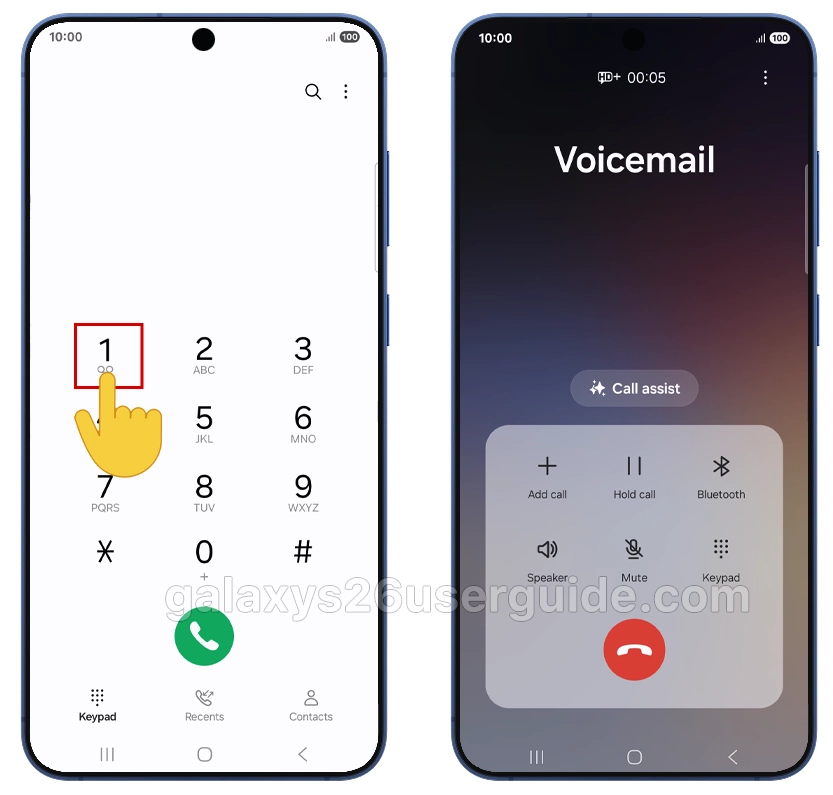
- Open the Phone App: Tap the green phone icon on your home screen.
- Access the Keypad: Ensure you are on the “Keypad” tab rather than “Recents” or “Contacts.”
- The Magic Number: Long-press the number 1 key. On most networks, this is the pre-programmed shortcut for voicemail.
- Follow the Prompts: Once the call connects, an automated system will guide you. You will typically be asked to:
- Create a Password: Choose a 4-to-6-digit PIN. Avoid obvious ones like “1234.”
- Record Your Name: This is used for the system’s standard greeting.
- Record Your Greeting: You can choose the “Standard” greeting (which uses your recorded name) or a “Custom” greeting where you record a personal message.
- Hang Up: Once the system says, “Your mailbox is now set up,” you’re good to go!
Add the voicemail number on your phone
Sometimes, the speed-dial setup might not be pre-programmed, especially if you bought an unlocked Galaxy S26 directly from Samsung rather than a carrier store. Here is how to fix it manually:
- Open the Phone app and go to Keypad.
- Tap the three vertical dots in the top right and select Settings.
- Scroll down and tap Voicemail.
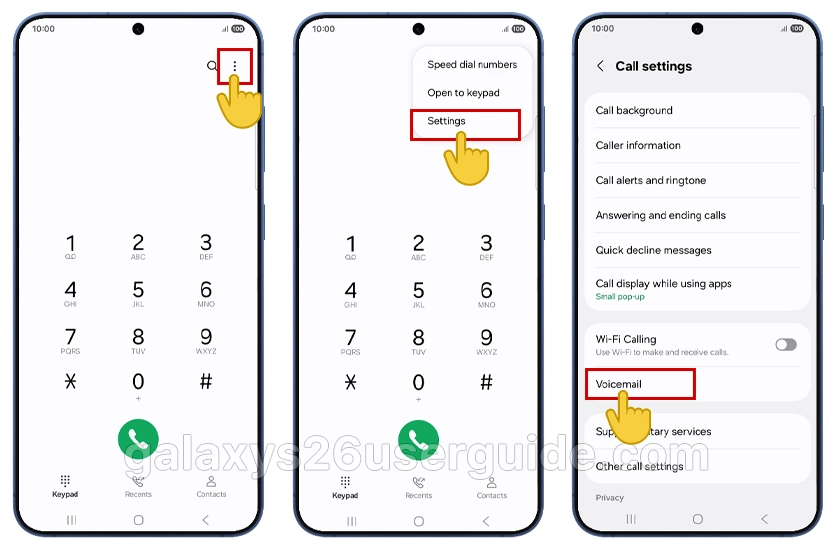
- Select Voicemail settings or Voicemail number.
- Here, you can manually enter the voicemail access number provided by your mobile carrier. (If you don’t know this number, a quick Google search for “[Your Carrier] voicemail access number” will reveal it).
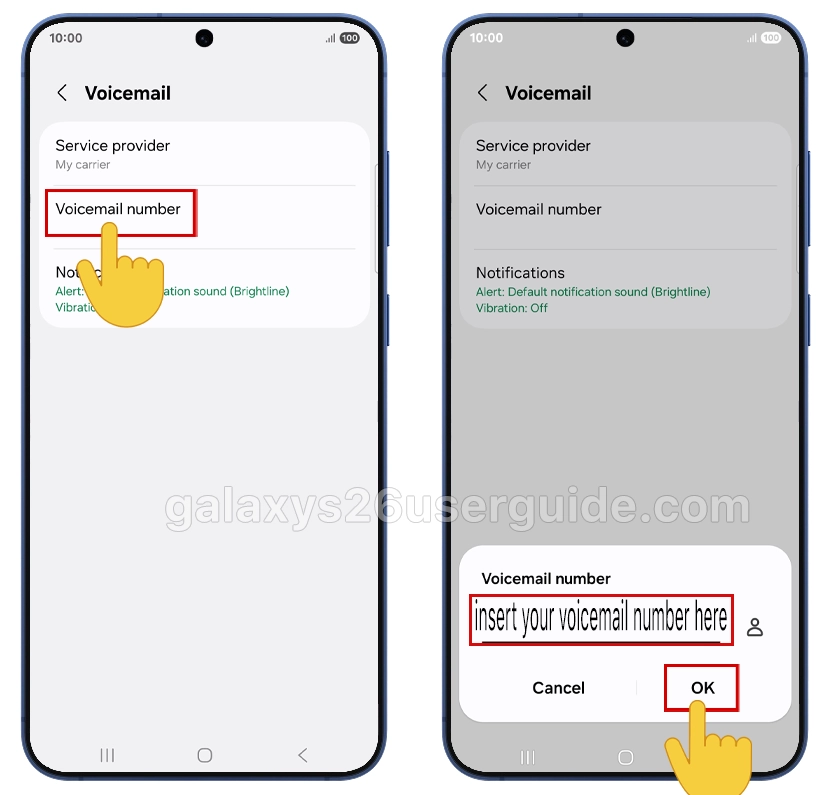
- Once saved, return to the keypad and try holding 1 again.
Method 2: Setting Up Visual Voicemail
Visual Voicemail allows you to see a list of your messages and play them in any order without having to listen to an automated menu. It’s a game-changer for productivity.
- Find the App: Look for an app icon that looks like an envelope or a reel-to-reel tape. It might be in a folder labeled “Samsung” or “Carrier” (like T-Mobile, Verizon, or AT&T).
- Grant Permissions: Upon opening it for the first time, the S26 will ask for permission to access your phone, contacts, and storage. Tap Allow or Agree.
- The Welcome Screen: Tap Start or Continue. The app will then communicate with your carrier to activate the service.
- Syncing: If you already set up your PIN via Method 1, the app might sync automatically. If not, follow the on-screen prompts to set your password and greeting directly within the app.
Pro Tips for the Galaxy S26
With the Galaxy S26’s advanced One UI 8.5, you have extra tools at your disposal:
- Bixby Text Call: If you’re too busy to answer, you can use Bixby to “screen” the call. Bixby will ask the caller why they are calling, and you’ll see a live transcript on your screen. You can then choose to send them to voicemail or answer.
- Voicemail Notifications: If you aren’t seeing notifications, go to Settings > Apps > Visual Voicemail > Notifications and ensure “Allow notifications” is toggled on.
- Transcription: Most Galaxy S26 models include AI-powered transcription. When you view a message in Visual Voicemail, look for a “Transcribe” button to read the message instead of listening to it.
- Direct Voicemail: Samsung Galaxy devices sends incoming calls straight to an on-device voicemail system, allowing callers to leave messages with real-time transcription, available in One UI 8.5 and later.
Crafting the Perfect Greeting: Your Audio Business Card
Your voicemail greeting is often a caller’s first impression of you when you’re unavailable. A clear, friendly, and informative message is key. When prompted to record:
- Speak clearly and slowly in a calm, quiet environment.
- State your name so callers know they’ve reached the right person.
- Set expectations. A simple “I’m unavailable right now” or “I’ll return your call as soon as I can” is perfect.
- Consider a custom greeting for special occasions, like vacations, which you can usually set by navigating your voicemail menu options after initial setup.
Troubleshooting and Pro Tips
- “I Can’t Access My Voicemail“: Double-check that you have a strong cellular signal (Wi-Fi won’t work for carrier voicemail calls). Ensure call forwarding is correctly set—sometimes accessed by dialing *#61#—and that it directs unanswered calls to your voicemail number.
- Visual Voicemail: Many carriers offer a Visual Voicemail app (which may be pre-installed or available for download from the Galaxy Store). This fantastic feature transcribes messages to text and lets you manage voicemails like emails, all without making a call. Check your carrier’s website or app store for compatibility.
- Password Security: Never use an easily guessed PIN like “1234” or your birth year. Change it periodically for security.
- Regular Maintenance: Get in the habit of clearing out old messages to avoid a full mailbox, which might prevent new messages from being left.
Set up voicemail on your Samsung Galaxy S26 is the final step in making your new device truly yours. Whether you prefer the classic method of dialing in or the modern convenience of Visual Voicemail, having a personalized greeting ensures that your callers feel heard even when you’re away from your phone. Now that your “digital secretary” is ready to take messages.
How do I disable visual voicemail?
remove your voicemail number from setting, your voicemail will be disabled