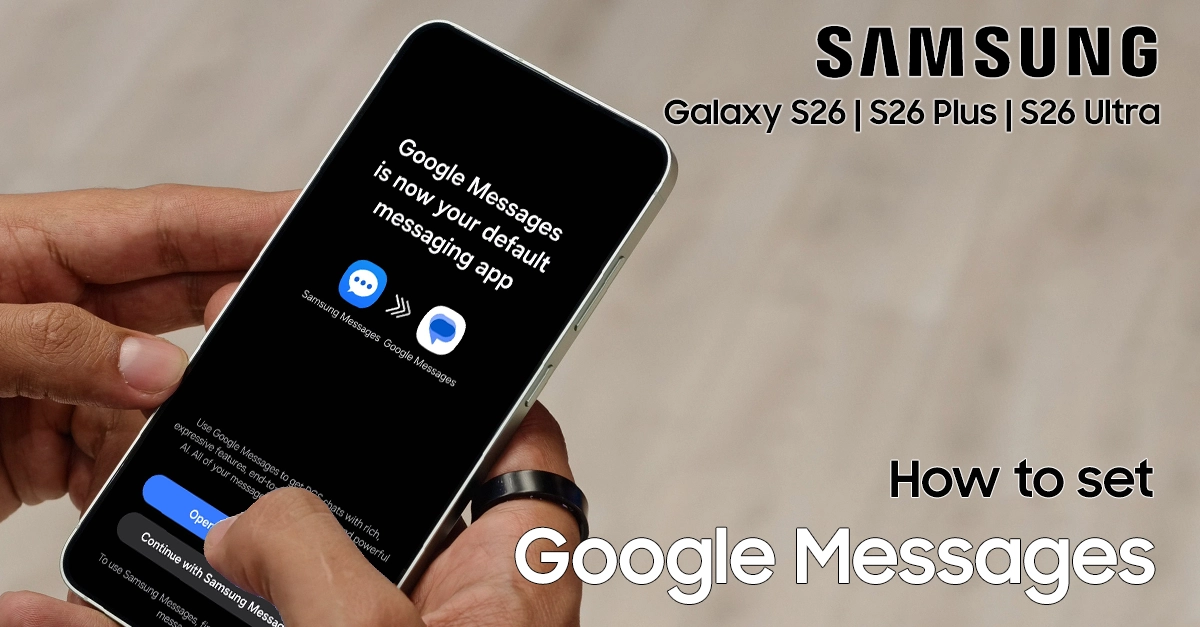
If you prefer Google’s clean interface, RCS chat features, and better syncing across devices, you can quickly set Google Messages as the default messaging app on Galaxy S26 instead of Samsung Messages. This guide walks you through each step in a clear, beginner-friendly way while following the same logic you see in Samsung support pages and carrier setup guides.
Before You Start: Requirements
Before changing the default app, make sure you have everything ready so the switch is smooth.
- Google Messages must be installed and updated from the Play Store.
- Your Galaxy S26 must be connected to mobile data or Wi‑Fi for RCS features and backup to work correctly.
- You should be signed in with your Google account if you plan to sync and back up messages via Google services.
On most Galaxy phones, including recent models, Samsung allows you to change the default messaging app through the system Default apps settings, similar to the path described in official Samsung support articles.
Steps to Set Google Messages as Default Messaging App on Galaxy S26
Here are the four easiest methods to make Google Messages your go-to texting app on your Galaxy S26.
Step 1: Install or Update Google Messages
If Google Messages is already installed, you can skip to the next section; otherwise, follow these steps.
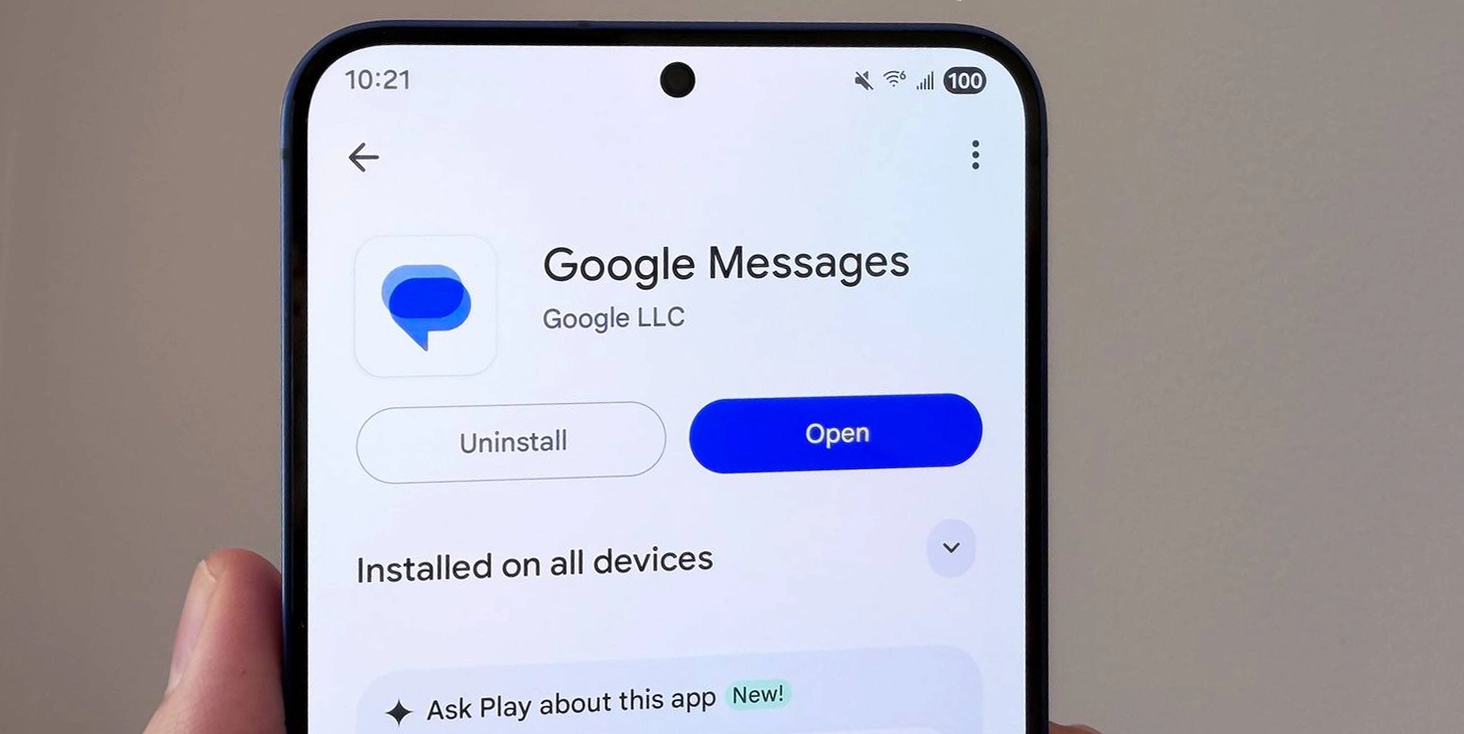
- Open the Google Play Store on your Galaxy S26.
- In the search bar, type “Google Messages”.
- Tap Messages by Google LLC (often labeled “Google Messages”).
- Tap Install (or Update if it is already installed but not up to date).
Carrier guides and Samsung support both recommend keeping your messaging app updated for the best compatibility with RCS and network features.
Step 2: Set Google Messages as the Default SMS App via Settings
The most reliable method—used in Samsung’s own support documentation—is changing the default app via Settings > Apps > Default apps.
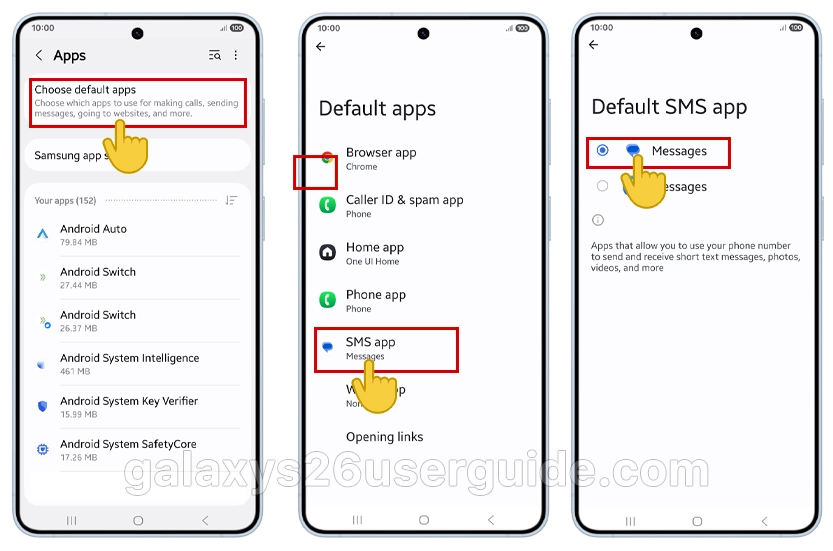
- Open the Settings app on your Galaxy S26.
- Scroll down and tap Apps.
- Tap Choose default apps.
- Tap SMS app.
- Select Messages (Google Messages) from the list.
Once selected, Android routes all SMS and MMS through Google Messages by default, which is consistent with how Samsung documents the behavior on other Galaxy phones.
Step 3: Accept the “Set as Default” Prompt Inside Google Messages
On many carrier-branded and Samsung devices, Google Messages can also show an in‑app prompt asking to become the default SMS app the first time you open it.
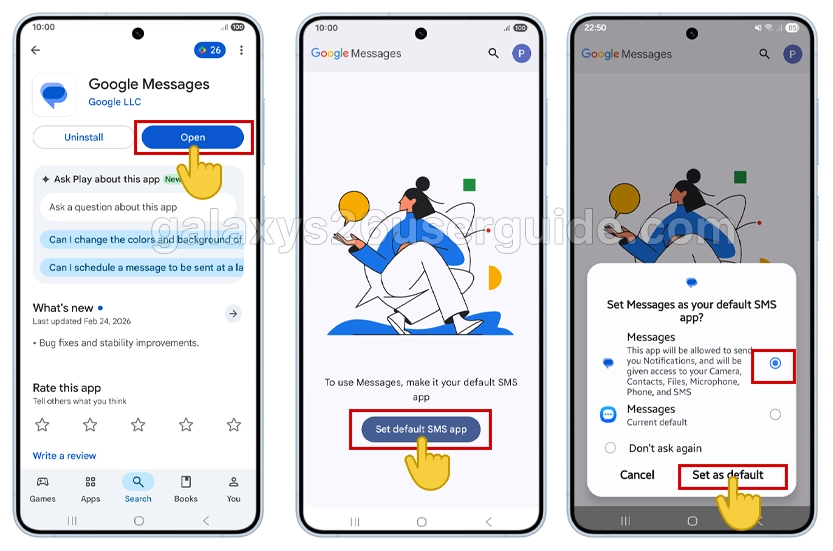
- Open the Google Messages app.
- If you see a prompt that says something like “Set Messages as your default SMS app?”, tap Set as default.
- If the prompt does not appear, the app might already be the default, or you may need to use the Settings path described in the previous section.
This behavior mirrors what Google and carriers describe in their own “get started with Messages” onboarding flows.
Step 4: Verify Google Messages Is Now the Default
After you make the change, it is good practice—just like in Samsung and carrier guides—to confirm that everything is working as expected.
You can verify in two ways:
From Settings:
- Go to Settings > Apps > Default apps > SMS app and confirm Messages is selected.
By sending a test message:
- Open Google Messages.
- Send a test SMS to a contact or your own number.
- Check that the conversation appears in Google Messages and not in Samsung Messages.
If Samsung Messages still receives texts, it usually means the default app switch did not save, and you should repeat Step 2 carefully.
Troubleshooting: If Google Messages Won’t Stay as Default
Sometimes, especially on carrier-branded phones, the default SMS app may revert after updates or if you install certain carrier messaging apps.
Try these tips:
- Re-open Default apps:
- Go back to Settings > Apps > Default apps > SMS app and re-select Messages.
- Disable or limit competing SMS apps:
- If your carrier app or Samsung Messages is aggressively taking over, you can:
- Turn off notifications in Settings > Apps for the extra SMS app, or
- Avoid opening that app when you receive new messages.
- Check for updates:
- Update Google Messages, Android system components, and Carrier Services via the Play Store for better compatibility.
These troubleshooting steps follow the same patterns you see in generic Android SMS app change guides used by carriers and third-party support sites.
Why Use Google Messages on Galaxy S26?
For Galaxy S26 users who love trying new tricks, switching to Google Messages adds several practical benefits.
- Modern RCS experience: Typing indicators, better media, improved group chats, and Wi‑Fi messaging when supported.
- Cleaner, Google-style UI: Many users prefer the simple layout and organization.
- Better cross-device integration: Google’s ecosystem makes it easier to use Messages on the web and across multiple devices.
Using these features alongside Galaxy S26’s hardware and Samsung’s software makes your messaging setup feel more powerful and flexible than using a single default app alone.
Conclusion
Setting Google Messages as the default messaging app on your Samsung Galaxy S26 is a quick process that can significantly improve your texting experience. With its clean design, smart spam protection, and advanced RCS chat features, Google Messages offers a modern alternative to traditional SMS apps.
2 thoughts on “How to Set Google Messages as Default Messaging App on Samsung Galaxy S26”