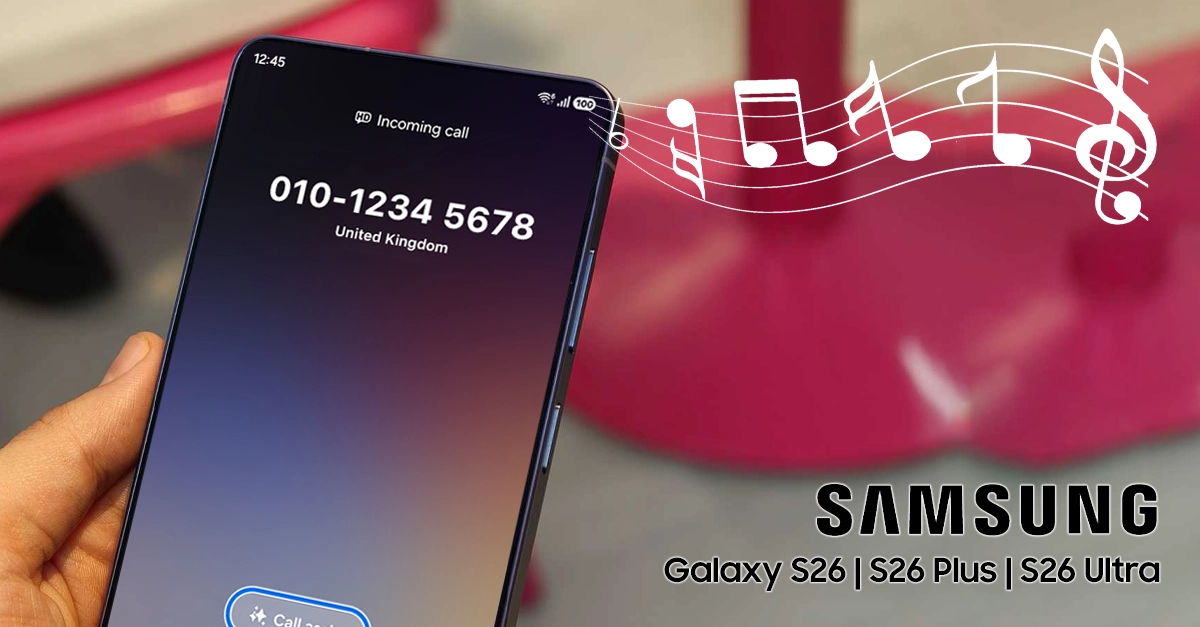
Setting a custom song as your ringtone on the Samsung Galaxy S26 series allows you to personalize your device with your favorite music. Whether you own the Galaxy S26, S26+, or S26 Ultra, you can easily use song as ringtone on Galaxy S26 devices using the built-in One UI settings. This guide walks you through the simple process to customize your call alerts with any audio file stored on your phone.
Preparing Your Song File for Use as Ringtone
Before you can set a custom song as your ringtone, you need to ensure your audio file is properly formatted and stored in the right location on your device.
Supported Audio Formats
The Galaxy S26 series supports common audio formats for ringtones including MP3, M4A, WAV, and OGG files. For best compatibility and file size efficiency, MP3 is recommended. Ensure your song file is not protected by DRM restrictions, as these files cannot be used as ringtones.
Where to Store Your Music Files
For the system to detect your custom audio files, store them in one of these folders:
- Music folder (default location for music files).
- Downloads folder (if you downloaded the song directly).
- Ringtones folder (create this if it doesn’t exist).
- Notifications or Alarms folders (for those specific alert types).
Connect your Galaxy S26 to a computer via USB and select “Transferring files” mode to easily move your music files to the appropriate folder.
Steps to Set Song as Ringtone on Your Galaxy S26
Follow these steps to use song as ringtone on galaxy s26 devices:
Accessing Sound and Vibration Settings
- Open the Settings app on your Galaxy S26.
- Scroll down and tap Sounds and vibration.
- Select Ringtone from the menu.
- You’ll see a list of default Samsung ringtones.
Adding Custom Ringtone from Storage
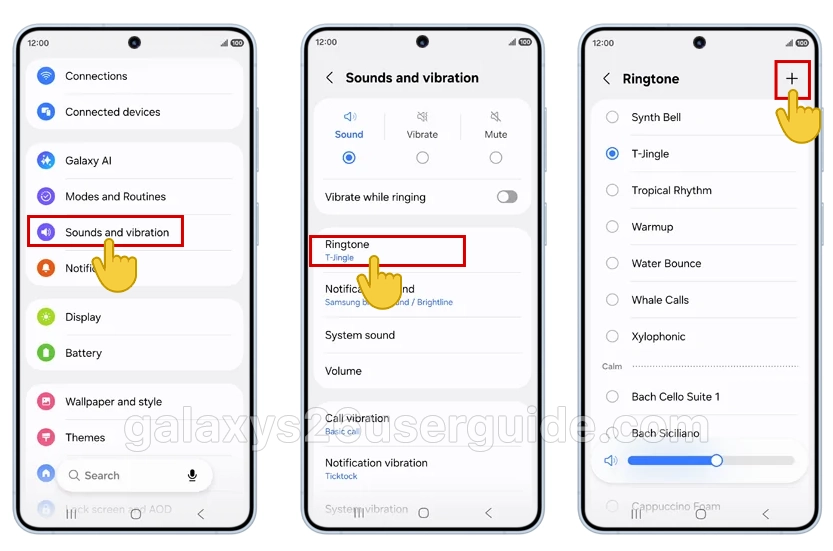
- In the Ringtone menu, look for the plus (+) icon in the top-right corner.
- Tap the plus icon to open the sound picker.
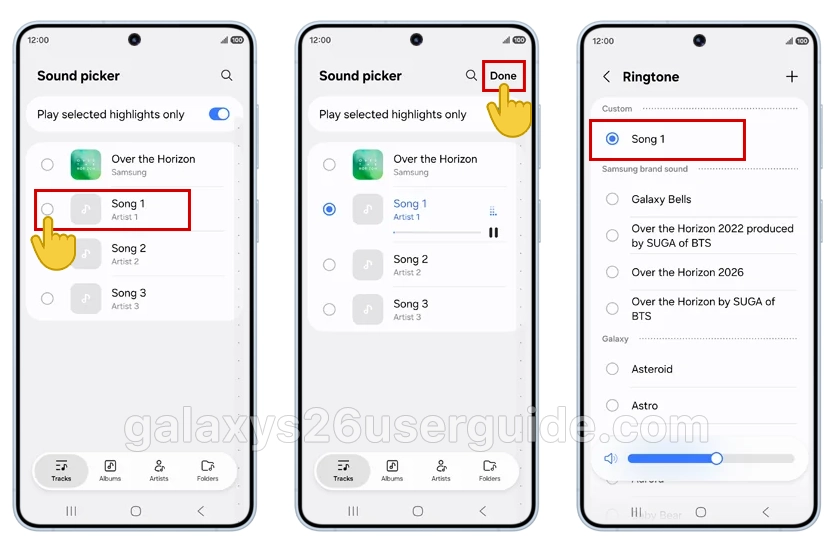
- Your phone will display audio files from your storage.
- Navigate to the folder where you stored your song (Music, Downloads, etc.).
- Select the specific song you want to use as your ringtone.
Selecting Specific Song Sections
The Galaxy S26 allows you to use only a portion of a song as your ringtone:
- After selecting your song, you may see sliders or start/end time options.
- Adjust these to choose the specific section (like the chorus) you want to hear.
- Preview the selection to ensure it starts and ends at the right points.
- Tap Done or Save to confirm your selection.
Troubleshooting Common Issues When Setting Song as Ringtone
Even with a straightforward process, you might encounter some issues when trying to use song as ringtone on Galaxy S26 devices.
Song Not Appearing in Ringtone List
If your selected song doesn’t show up:
- Verify the file is in a supported format (MP3 works best).
- Check that the file isn’t corrupted by playing it in your music app.
- Ensure the file is stored in an accessible folder (not in a secure or encrypted folder).
- Restart your device after adding new music files.
- Try moving the file to the Music or Downloads folder if it’s elsewhere.
Ringtone Not Playing Correctly
If your custom ringtone plays strangely or not at all:
- Check the volume levels for notifications and ringtones separately
- Ensure Do Not Disturb mode isn’t silencing all sounds
- Verify the file isn’t too short (minimum 1 second) or too long (ideal length 10-30 seconds)
- Try converting the file to a standard MP3 format using a free audio converter
Setting Different Ringtones for SIM Cards and Contacts
Take advantage of your Galaxy S26’s advanced customization options:
Assigning Ringtones to Specific Contacts
- Open the Contacts app.
- Select a contact and tap Edit.
- Scroll down to find Ringtone or Message tone.
- Tap it and choose your custom song from the list.
- Save the contact – now calls from this person will use your selected song.
Using Different Ringtones for Dual SIM
If you’re using two SIM cards:
- Go to Settings > Sounds and vibration > Ringtone.
- Look for SIM 1 and SIM 2 options separately.
- Set different custom songs for each SIM line.
- This helps you identify which number is calling without looking at your phone.
Conclusion
You now know how to use song as ringtone on Galaxy S26 devices through Samsung’s built-in One UI interface. The process is simple: store your preferred audio file in an accessible folder, navigate to Settings > Sounds and vibration > Ringtone, tap the plus icon, select your song, and confirm. Remember that you can customize ringtones for individual contacts and SIM cards for even greater personalization.
By following these steps, you’ve successfully moved beyond the default Samsung tones and made your Galaxy S26 truly yours with your favorite music as your call alert. This small customization enhances your daily smartphone experience every time your phone rings.
1 thought on “How to Use Song as Ringtone on Your Samsung Galaxy S26”