If you want to remove bloatware on Galaxy S26, you’re not alone. Samsung’s latest flagship comes packed with pre-installed apps—many of which run silently in the background, consuming RAM, battery life, and storage space. For Galaxy S26 users experiencing software issues like lag, unexpected battery drain, or sluggish performance, removing bloatware can provide immediate relief.
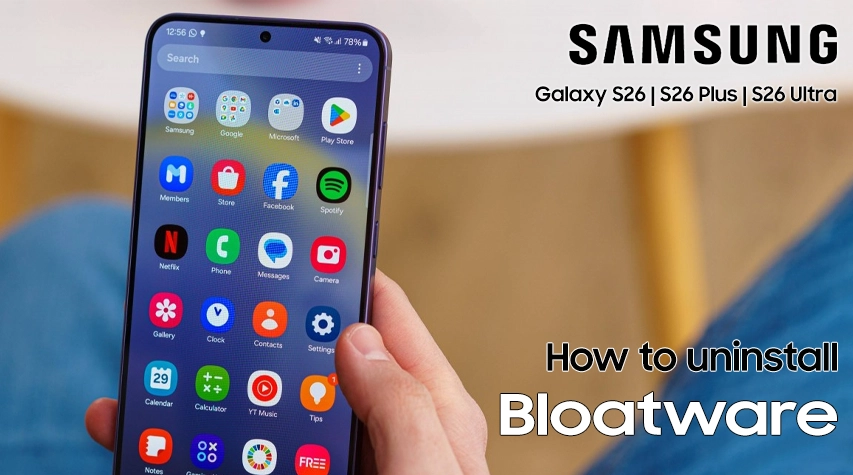
This guide covers two effective methods to remove bloatware on Galaxy S26: using native settings for simple uninstallation, and disabling system apps you cannot delete—all without requiring root access.
What Is Bloatware and Why Remove It?
Bloatware refers to pre-installed applications from Samsung, carriers, or third-party partners that you never requested. On your Galaxy S26, these may include:
- Samsung-branded apps: SmartThings, Samsung Free, AR Zone, Galaxy Store redundancy.
- Carrier apps: Verizon, T-Mobile, or AT&T proprietary software.
- Third-party apps: Facebook, Netflix, Microsoft Office suite.
These applications often launch background processes automatically, consuming system resources even when unused. Removing them can improve performance, extend battery life, and free up storage space.
Steps to Remove Bloatware on Samsung Galaxy S26
You have a few options to clean up your app list, depending on whether you want to fully remove an app or just hide it from view.
Method 1: Uninstall Apps Using Native Settings (Easiest)
The simplest way to remove bloatware on Galaxy S26 involves using your phone’s built-in settings. This method works for non-system apps that Samsung allows you to delete.

- Step 1: Swipe up from your home screen to open the app drawer.
- Step 2: Locate the pre-installed app you want to remove. Press and hold its icon until a menu appears.
- Step 3: Tap Uninstall, then confirm by selecting OK.
- Step 4: The app disappears from your device immediately, freeing up its occupied space.
This method works for many third-party apps like Facebook, LinkedIn, and Microsoft Office applications. However, most Samsung-branded system apps will not show an uninstall option—require Method 2.
Method 2: Disable System Apps You Cannot Delete
When you cannot uninstall an app, disabling it serves as your next best option. Disabled apps vanish from your app drawer, stop receiving updates, and cease running background processes.

- Step 1: Open Settings from your app drawer.
- Step 2: Scroll down and select Apps.
- Step 3: Find the Samsung app you want to disable (examples: Samsung Free, Avatar Stikers, Bixby Vision, AR Zone).
- Step 4: Tap the app name, then select Disable at the bottom of the screen.
- Step 5: Read the disclaimer, then tap Disable app to confirm.
Note: Disabling core system apps like Phone, Messages, or Settings may affect device functionality. Stick to apps you recognize as non-essential.
Reversing Changes: How to Restore Removed Apps
If you accidentally remove an app or experience issues after debloating, restoration remains possible:
- For disabled apps: Go to Settings > Apps > Disabled apps, select the app, and tap Enable.
- For third-party apps: Reinstall from Google Play Store or Galaxy Store.
Which Apps Are Safe to Remove?
Generally safe to uninstall/disable:
- Pre-installed games.
- Shopping apps.
- Duplicate apps (Samsung + Google versions).
- Carrier-branded apps.
Avoid removing:
- System UI.
- Phone or Contacts apps.
- Core Samsung services.
- Android System components.
If unsure, disable instead of uninstalling.
Benefits of Removing Bloatware on Galaxy S26
Removing or disabling unused apps can:
- Free up storage space.
- Improve battery life.
- Reduce background data usage.
- Improve performance.
- Make your phone feel faster.
- Create a cleaner interface.
Conclusion: Take Control of Your Galaxy S26
Learning to remove bloatware on Galaxy S26 empowers you to reclaim storage space, improve system performance, and resolve software issues caused by unnecessary background processes. Start with native uninstallation for third-party apps, and disable Samsung apps you cannot delete for comprehensive system-level removal when needed.
The methods described here require no root access, preserving your warranty and system security while delivering tangible performance benefits. Galaxy S26 users experiencing software issues will notice smoother operation, improved battery life, and a cleaner app drawer after removing unwanted bloatware.
Choose the method matching your technical comfort level, proceed carefully when removing system apps, and enjoy a streamlined Galaxy S26 experience free from unnecessary software clutter.