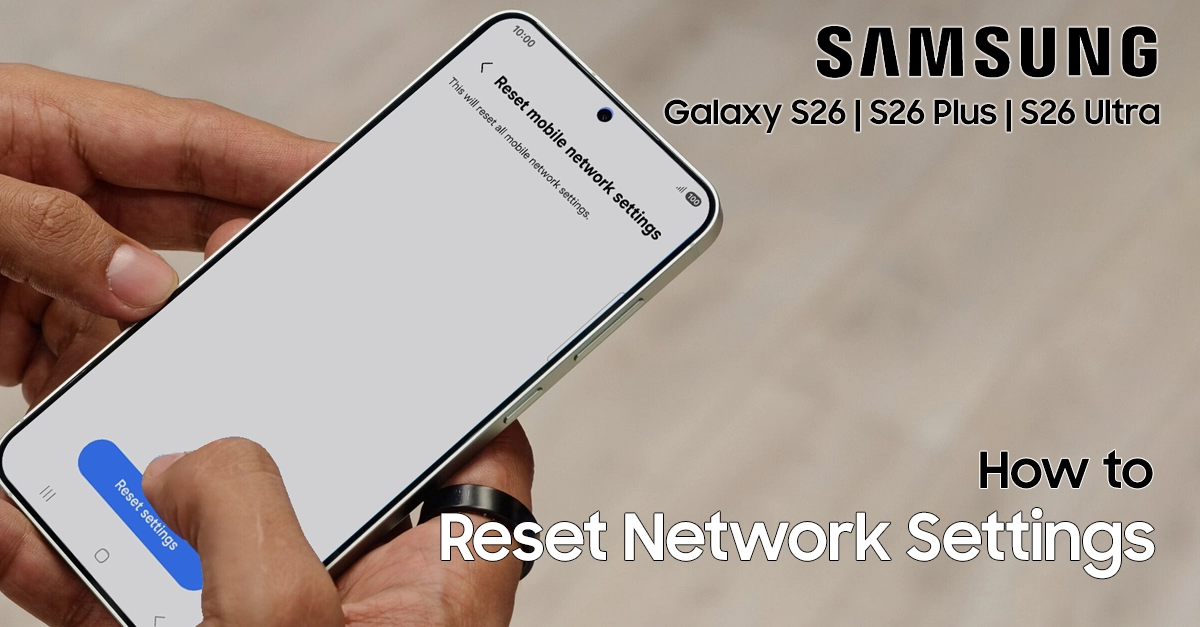
Connection problems can disrupt your entire day. When your Samsung Galaxy S26 experiences Wi-Fi drops, stubborn Bluetooth pairing failures, or mobile data that refuses to work, resetting network settings offers a clean, effective solution. This guide walks you through exactly how to reset network settings on Galaxy S26 to restore reliable connectivity without touching your personal files, photos, or apps.
What Resetting Network Settings Does
Resetting network settings on your Galaxy S26 clears saved Wi-Fi passwords, Bluetooth device pairings, and mobile network configurations.
Your device restores these settings to factory defaults while keeping your photos, apps, contacts, and personal data completely intact.
After completing the reset, you will need to:
- Re-enter passwords for Wi-Fi networks.
- Reconnect Bluetooth devices like headphones and smartwatches.
- Verify mobile data settings if they do not restore automatically.
When to Reset Network Settings on Galaxy S26
Consider this reset when you encounter these specific problems:
- Wi-Fi networks fail to connect or drop frequently.
- Bluetooth devices refuse to pair or maintain stable connections.
- Mobile data does not work despite showing signal bars.
- Voice calls or text messages fail to send.
- Network-related settings were changed accidentally.
Step-by-Step Guide to Reset Network Settings on Galaxy S26
Follow these exact steps to complete the process in under two minutes:
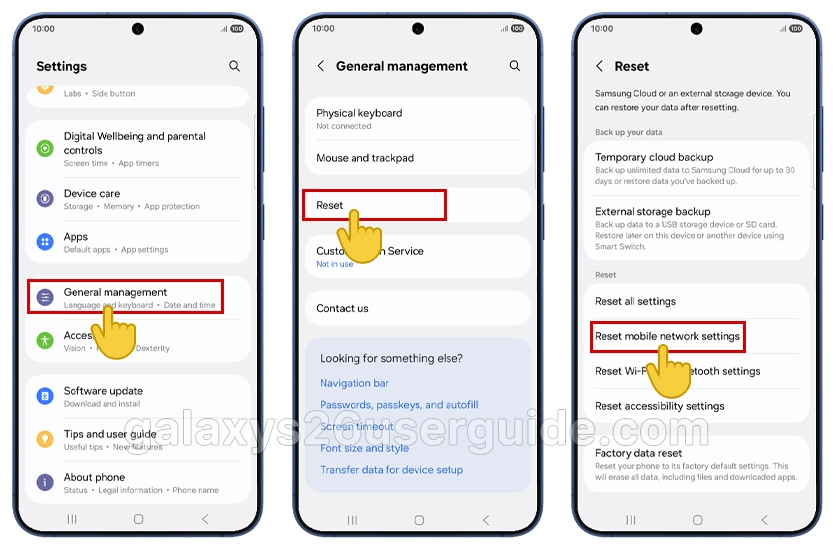
Step 1: Open Settings
Launch the Settings app from your home screen or app drawer.
Step 2: Access General Management
Scroll down and tap General management.
Step 3: Select Reset Options
Tap Reset, then choose Reset mobile network settings.
Step 4: Confirm Your Choice
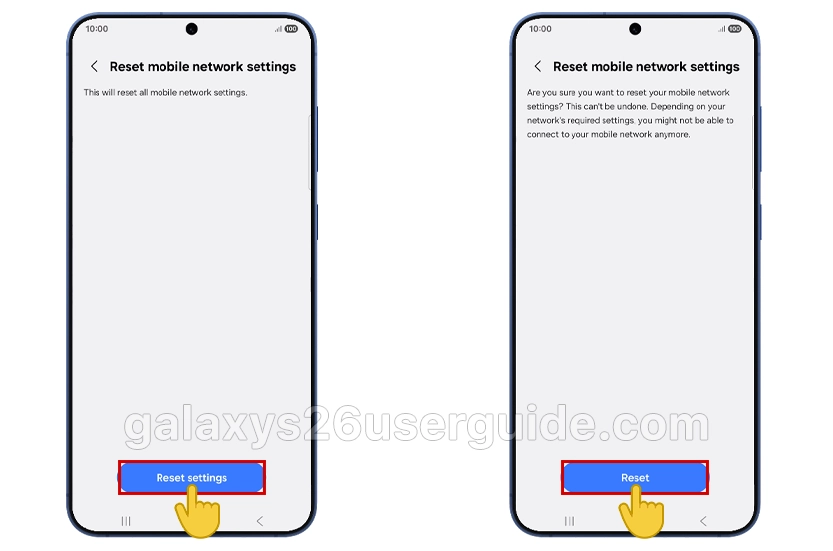
Tap Reset settings. If you have device security enabled, enter your PIN, password, or pattern to proceed.
Step 5: Complete the Reset
Tap Reset once more to confirm. The process completes immediately with no additional confirmation screen.
Alternative Reset Options Explained
Your Galaxy S26 offers specific reset choices depending on your needs:
| Reset Option | What It Clears | Best For |
|---|---|---|
| Reset mobile network settings | Cellular data, APN, calling settings | Mobile data and call issues |
| Reset Wi-Fi and Bluetooth settings | Saved Wi-Fi networks, Bluetooth pairings | Wi-Fi and Bluetooth connectivity problems |
What to Do After Resetting
Once you reset network settings on Galaxy S26, take these steps to restore full functionality:
- Reconnect to Wi-Fi networks – Enter passwords for home, work, and public networks.
- Pair Bluetooth devices – Reconnect headphones, speakers, smartwatches, and car systems.
- Check mobile data – Verify carrier settings and APN configurations if mobile data does not work automatically.
- Contact your carrier if needed – Some providers require specific settings after a network reset.
Quick Fixes to Try First
Before resetting network settings on your Galaxy S26, attempt these faster solutions:
- Restart your device – Turn your Galaxy S26 off and on again.
- Toggle Airplane Mode – Enable Airplane Mode for 30 seconds, then disable it.
- Restart your router – Power cycle your Wi-Fi router if only Wi-Fi is affected.
If these steps fail, proceed with the network settings reset for a complete solution.
Conclusion
Knowing how to reset network settings on Galaxy S26 gives you a reliable tool for solving connectivity problems without losing personal data. This process takes less than a minute and restores your Wi-Fi, Bluetooth, and mobile data configurations to working order.
Follow the steps in this guide whenever your Galaxy S26 experiences network issues, and enjoy restored connectivity with minimal effort.